The Cost Updates section in Logs displays all records related to cost data pulled from your connected traffic source integrations and ad accounts. This log helps you monitor API requests, verify pulled costs, troubleshoot integration issues, and reconcile discrepancies between ClickFlare and your traffic source reporting.
Purpose of the Cost Updates Lo
The Cost Updates log allows you to:
- Track and verify cost data pulled from your traffic source integrations
- Monitor skipped pulls and API errors for troubleshooting
- Reconcile campaign, ad set, and ad-level costs with your traffic source reports
- Verify that your ClickFlare dashboard reflects accurate spend data
- Debug discrepancies between ClickFlare and traffic source reporting platforms
How to Access Cost Updates
To view cost update logs:
-
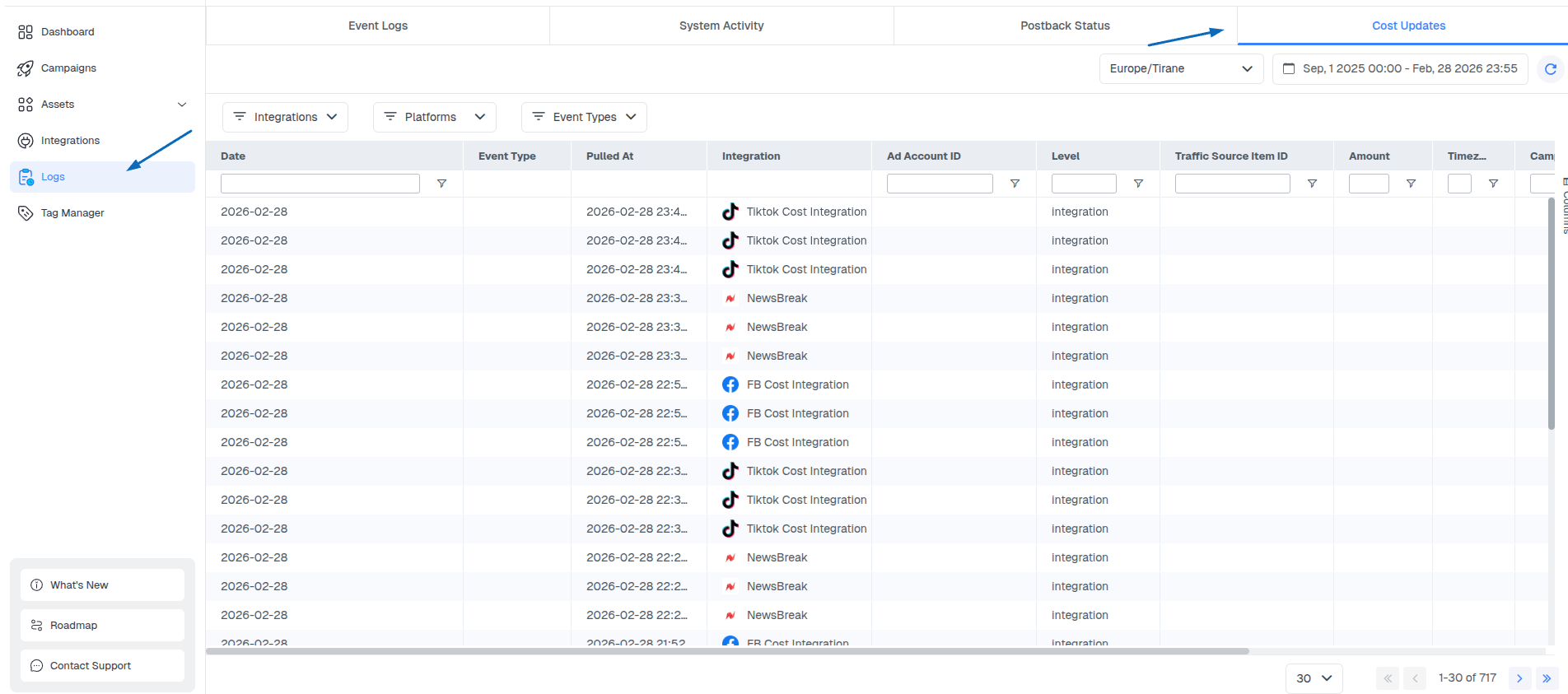
Go to Logs → Cost Updates.
-
Use the available filters to search by:
- Date
- Campaign
- Ad account
- Traffic Source Item ID
- Review the pulled amount and event type
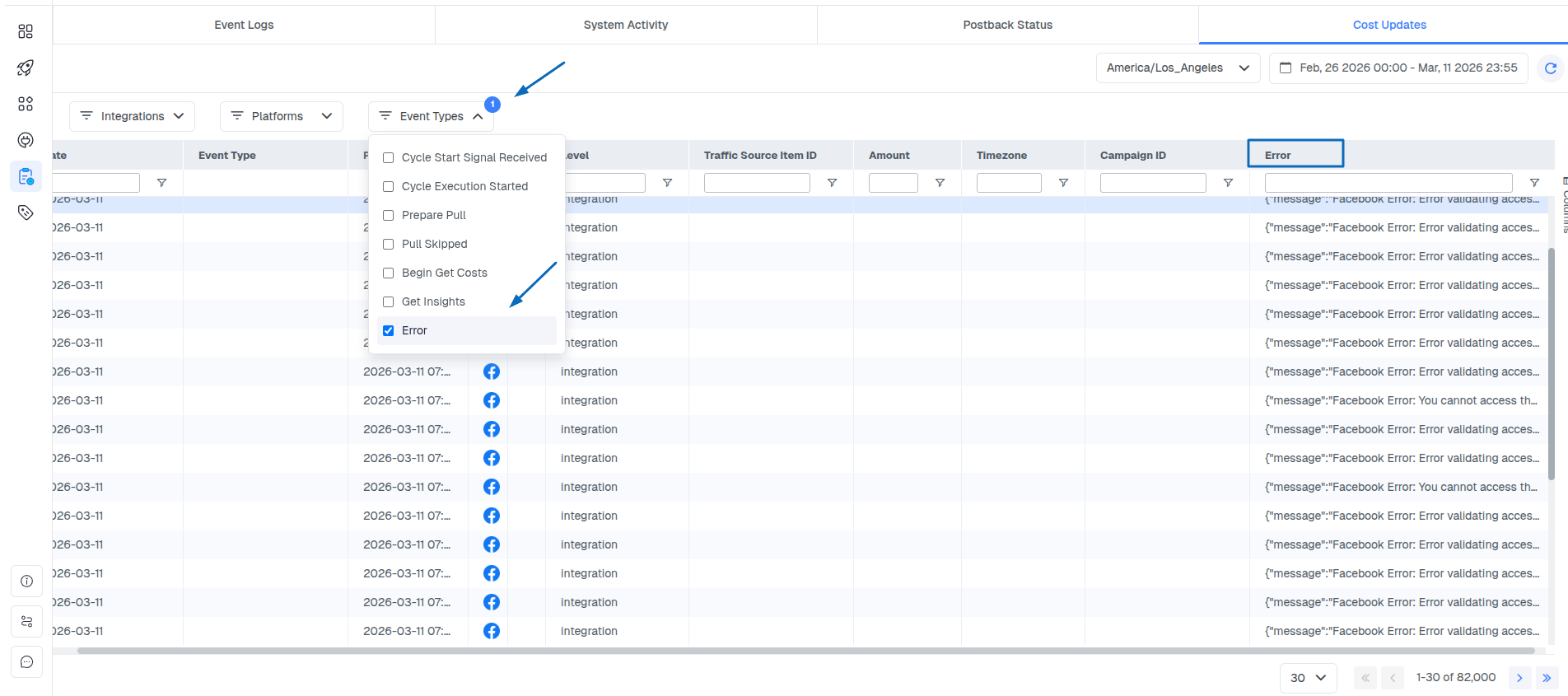
- Check the Error column for failed requests
-
Use the Pulled At column to identify the latest pull attempt
Columns Explained
-
Date
The date to which the pulled cost will be attributed in ClickFlare. -
Event Type
Indicates the type of event recorded in the log. The most common event types include:
-
Begin Get Cost – The integration initiated a request to the traffic source API to retrieve cost data.
-
Get Insights – The final cost data was successfully retrieved for the specific level (Ad, Ad Set, or Campaign).
-
Pull Skipped – The cost pull was skipped, usually because no update was required at that time.
-
Error – The integration encountered an error while attempting to retrieve cost data.
-
-
Pulled At
Shows the exact timestamp when the cost pull request was made.
Note that cost pulls can continue for past dates, so this field helps identify the most recent time a pull was attempted. -
Integration
Displays the name of the integration used to retrieve the cost data.
-
Ad Account ID
The traffic source ad account ID from which the cost data is being pulled.
-
Level
Indicates the hierarchy level for which the cost was retrieved. ClickFlare pulls cost data at the following levels:
-
Campaign
-
Ad Set
-
Ad
-
-
Traffic Source Item ID
The campaign ID/adset ID/ad ID from the traffic source platform.
If you want to check cost data for a specific traffic source campaign, it is recommended to search for the ID in this column -
Amount
The cost amount retrieved.
-
Timezone
Shows the timezone of the ad account from which the cost data was pulled
-
Campaign ID
The ClickFlare campaign ID is associated with the cost entry.
-
Error
Displays the full error message when a cost pull fails. This helps with troubleshooting and debugging integration issues.
Additional Columns:
-
Integration ID
The ClickFlare Cost Integration ID associated with the cost pull request.
-
Traffic Source ID
The ClickFlare Traffic Source Template ID inside CF, used for the cost integration configuration.
Common Issues & Troubleshooting
- Cost Pull Skipped – No new cost data was available for that period.
- API Errors
Review the Error column to identify:
- Permission issues
- Expired authentication tokens
- API limitations
- Invalid account connections
- Pulled Amount Mismatch – May occur due to timezone differences or delayed updates, depending on your plan
- Missing Campaign Data – Verify that the Traffic Source Item ID matches the campaign you’re tracking.
-
Timezone Mismatch – If the ClickFlare dashboard is viewed in a different timezone than your ad account, it may cause discrepancies in reported data.
-
Double Cost Count in One Campaign –
Duplicate costs can occur when the same traffic source campaign ID is reported into multiple ClickFlare campaigns.
This may lead to:
- Incorrect spend attribution
- Reporting inconsistencies
Correct Setup
Recommended campaign mapping structure:
- One traffic source campaign → One ClickFlare campaign
- Multiple traffic source campaigns → One ClickFlare campaign
Avoid:
- One traffic source campaign → Multiple ClickFlare campaigns
To prevent duplication issues, verify that each traffic source campaign uses only one ClickFlare campaign tracking URL.
Recommended Troubleshooting Workflow
When investigating cost discrepancies:
- Make sure the cost integration is connected to the traffic source, and that the same traffic source template is applied to the campaign.
- Confirm that the correct ad account is connected, from which the cost data should be pulled.
- Ensure the time zones match on the cost integration to avoid discrepancies in reporting.
For Facebook specifically, you don’t need to manually set a timezone; make sure you use the ad account timezone, since ClickFlare automatically pulls it from Facebook rather than letting you select it manually.
- Use Traffic Source Item ID when searching for matching data.
- Verify that each traffic source campaign is mapped to only one ClickFlare campaign, using a single ClickFlare campaign tracking URL per traffic source campaign.
- Check the latest “Pulled At” timestamp to confirm the most recent sync.
- Review the Error column for any issues or failed sync attempts.
- Double-check that the ad account is linked to the correct cost integration setup.
