A campaign can direct visitors to different paths and options to maximize profits. When creating a new campaign, you can choose from five options for where to direct your traffic. In this guide, we’ll focus on setting up a campaign that redirects traffic through Offers Only.
-
Create a New Campaign
-
From anywhere in ClickFlare, click the Campaigns tab on the left, then select + New at the top left.
-
-
Name and Configure
-
Give your campaign a memorable name. Choose the Traffic Source and its Cost Model.
-
-
Select Path Transition
Redirect Tracking Visitors are redirected through ClickFlare’s servers, allowing rule-based paths, weights, A/B testing, or AI-driven flows.
Direct Tracking Visitors land directly on the designated site without redirection.Note: You can also add a note to your campaign describing its purpose. -
Set Destination
Go to the Destination tab, choose New Flow, and select one of the four Redirect Modes. Click Add Path; the same process applies for Conditional Paths.
For this setup, select Offers Only. This ensures visitors go directly to one or multiple offers, which you can add easily.
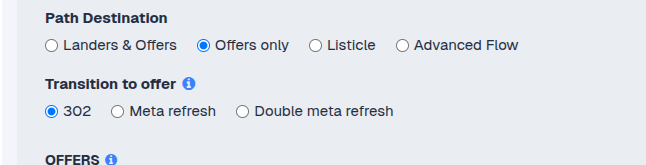
This means that a visitor will go directly to an offer when clicking on an ad, or multiple offers, which you can easily add.
Note: Traffic distribution is controlled by weight values, which determine the percentage of traffic each offer receives. The total always sums to 100%.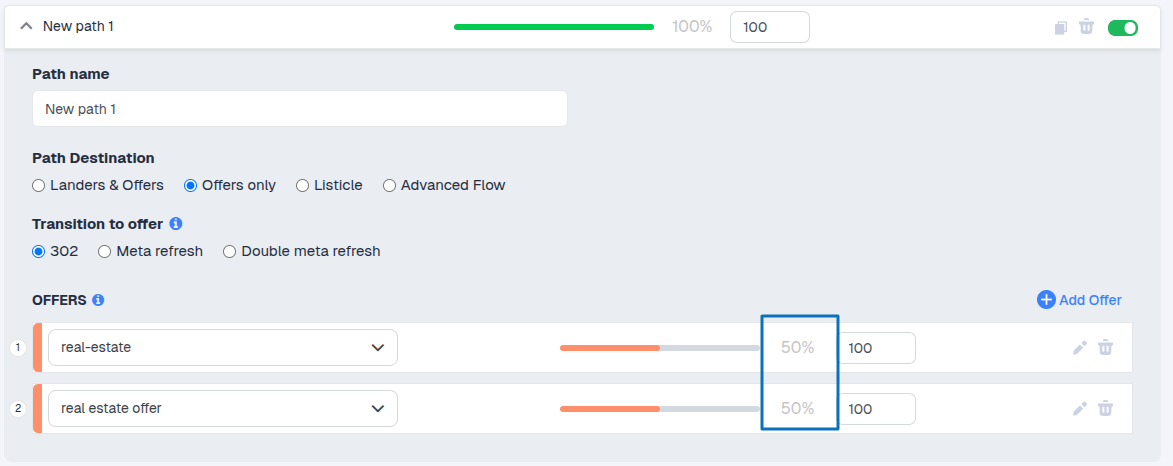
-
Select Transition and Save
-
Once you are done, click on Save.
You’ll be redirected to the Campaigns window, where your new campaign will appear in the list. You can Preview, Edit, Clone, or Archive your campaign at any time.
