Use a single ClickFlare campaign to redirect visitors to different paths based on a tracking parameter. This allows you to manage multiple paths in one campaign without creating separate campaigns.
Step 1: Plan Your Paths
Decide which variations or landing pages/paths you want to use in your campaign. Examples:
-
imagepath → Leads to Landing Page A/path A
-
videoPath → Leads to a video landing page/path B
These will be your conditional paths within the CF campaign.
Step 2: Add a Parameter in Your Traffic Source Template
Add a new parameter in your tracking template to define the visitor’s path.
- This value will be set before placing the URL in your ads.
-
In this example, we use trackingField9 to store the path value.
-
Example values: imagePath, videoPath, etc.
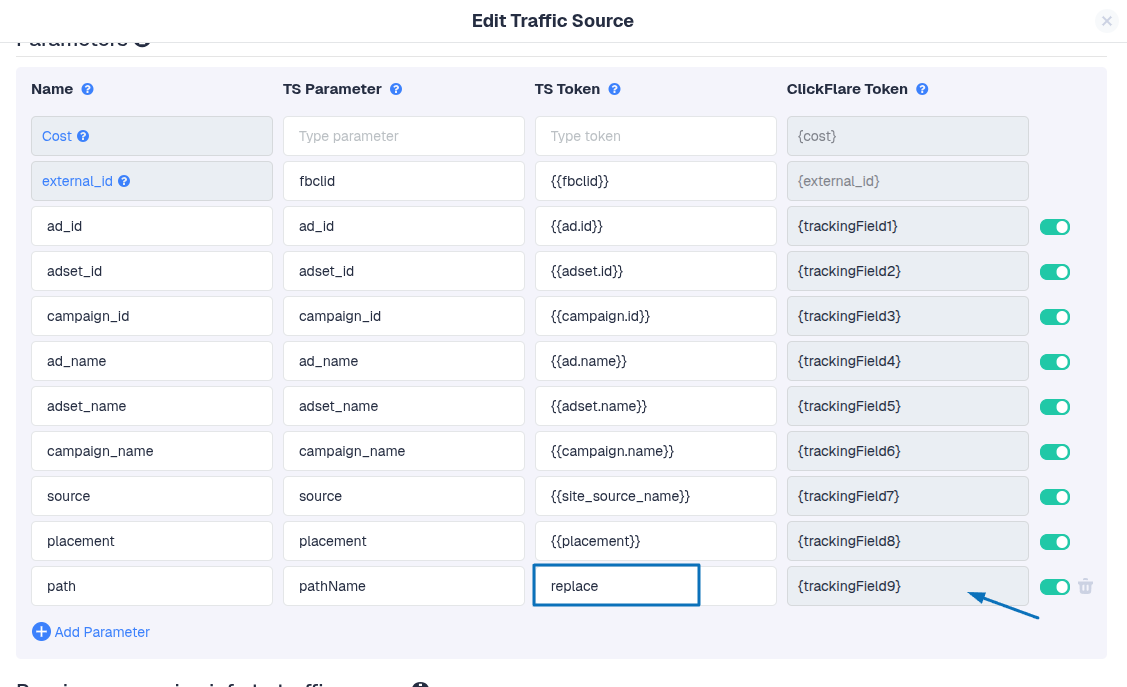
This allows ClickFlare to know where to redirect each visitor based on the parameter value.
Step 3: Create Conditional Paths in the CF Campaign
-
Go to ClickFlare dashboard → Campaigns → Your Campaign.
-
Click Add Path (Conditional Path) to create a new path.
-
Name the path according to the destination for easier management (e.g., imagePath, videoPath)
- Set up conditional rules for each path based on the tracking parameter you are using (trackingField9)
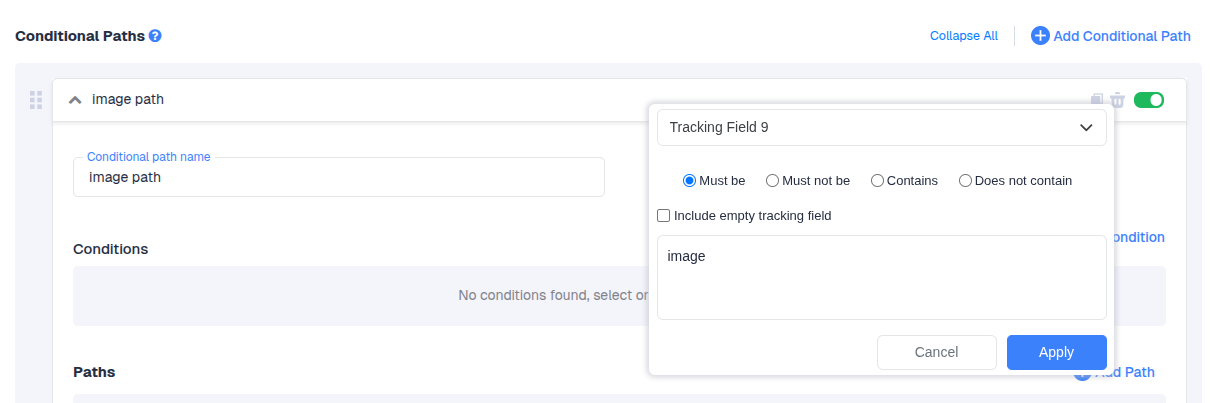
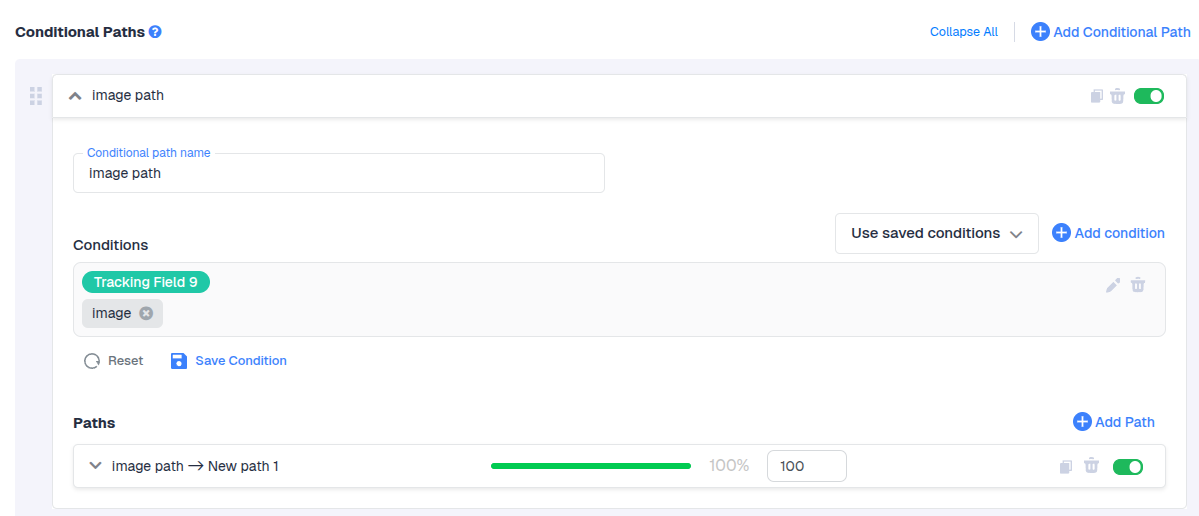
If the visitor is from an ad with a tracking URL pathname=image, all visitors from that ad will be redirected to this path named imagePath → New Path
Step 4: Test Each Path
Before launching the campaign:
- Copy the tracking URL for each path, replacing the parameter value with the intended path.
- Open the URL in a guest/incognito browser.
- Confirm that the visitor is redirected to the correct landing page.
Example URL:
https://yourdomain.com/cf/r/12345?ad_id={{ad.id}}&adset_id={{adset.id}}&campaign_id={{campaign.id}}&ad_name={{ad.name}}&adset_name={{adset.name}}&campaign_name={{campaign.name}}&source={{source_name}}&placement={{placement}}&pathname=image
Step 5: Use the Same Campaign for Multiple Ads
- You can use a single CF campaign for multiple ad sets or creatives.
- Simply change the value of the tracking parameter in the URL for each ad to redirect visitors to the correct path.
Key Takeaways
- One CF campaign can manage multiple path variations using conditional paths.
- Use a tracking parameter in the ad URL to define which path each visitor should follow.
- Set conditional rules in CF to handle redirection based on that parameter.
Test all paths before launching to ensure proper redirection.
FREQUENTLY ASKED QUESTIONS
Got questions? Find the answers below:
- Q1: What are the reasons against creating several CF campaigns for every path I intend to utilize?
A1: If you’re working with traffic sources where cost data is pulled automatically via API, creating multiple CF campaigns for the same traffic source campaign can cause cost discrepancies. This happens because a single traffic source campaign would be split across multiple CF campaigns, which leads to inaccurate cost tracking.
- Q2: What happens if the tracking parameter doesn’t match any path?
A2: Visitors will either be redirected to the default path. Always test each URL to ensure proper redirection.
- Q3: Can I change a path’s destination after the campaign is live?
A3: Yes. You can update the destination URL in CF, but ensure all conditional rules and tracking parameters remain consistent to avoid misdirecting traffic.
- Q4: Can I use multiple paths with direct tracking campaigns?
A4: No. Direct tracking campaigns always follow the specific URL or element placed on the ad. They cannot use conditional paths; traffic will only go to the link you set on the ad.
