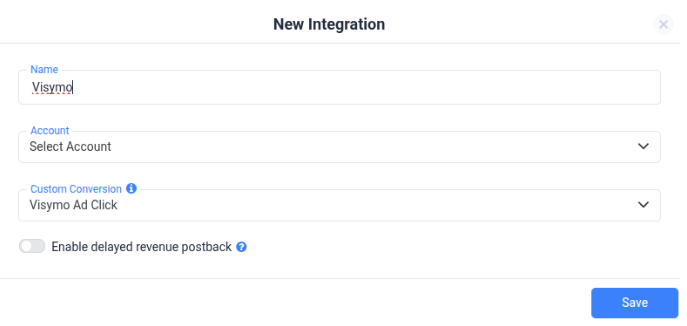
1. Set Up the Integration
-
Go to RSOC Integrations → Visymo/JAMPROJECT → New Integration.
-
Fill in:
-
Name: e.g., “Visymo RSOC”
-
Username, Password, Partner, Domain: provided by JAM.
-
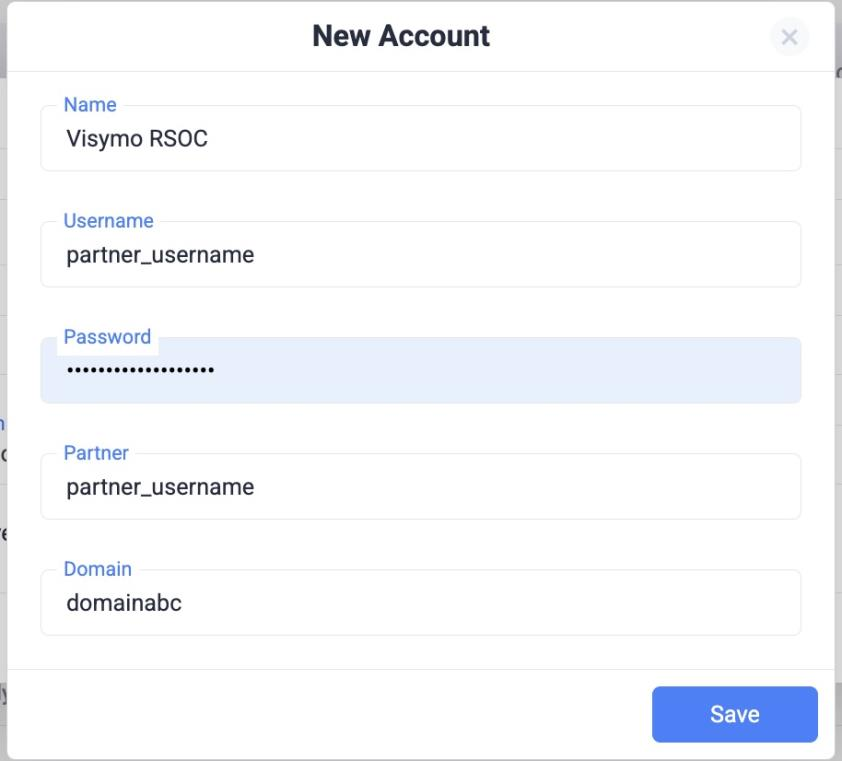
2. Add Custom Domain
-
Go to Domains in ClickFlare → Add New.
-
Use values from JAM:
-
Subdomain: trk
-
Root Domain: provided by JAM
-
-
Select Other as DNS provider.
-
Domain will show “CNAME error” → safe to ignore (ClickFlare fixes in backend).
3. Parameter Retention (Critical)
Visymo requires these parameters to pass through:
-
q → Search Query
-
locale → Locale
-
ctid → ClickFlare Click ID
Set up in ClickFlare
Traffic Source Parameters
- Add Search Query:
- Name: Search Query
- TS Parameter: q
- TS Token: {search_query} - Add Locale:
Name: Locale
TS Parameter: locale
Token: {locale}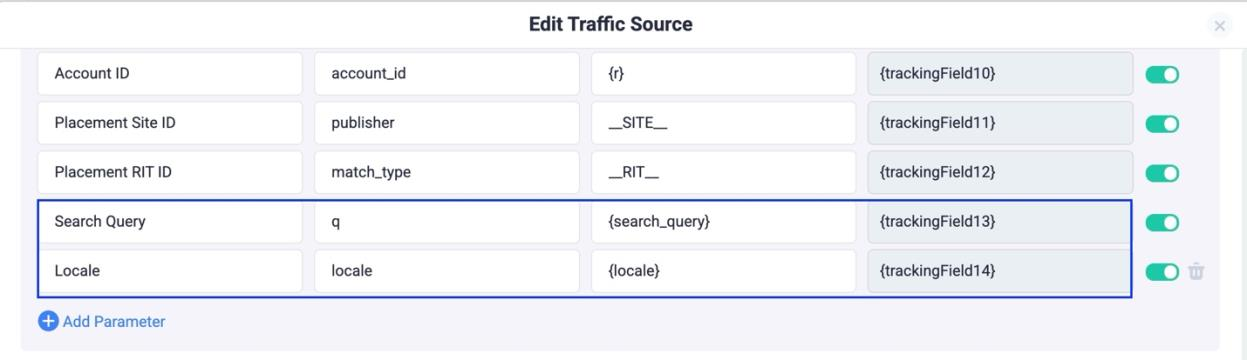
- Append Parameters to the Offer URL
&q={trackingField13}&locale={trackingField14}&ctid={cf_click_id}
Important: For the exact tracking field numbers, refer to your traffic source template. In this setup, we are storing:
-
q (Search Query) → trackingField13
-
locale → trackingField14
These are the values you need to use when mapping the offer URL:
Offer Templates, Facebook & TikTok
Required Parameters:
Facebookasid=REPLACE_VISYMO_CHANNEL&rac=CREATIVE_TEXT&de=m&pub=facebook&fbclid={external_id}&ctid={cf_click_id}&q={trackingFieldXXX}&locale={trackingFieldXXX}
• Replace {trackingFieldXXX} with your tokens from Step 1.
TikTokasid=REPLACE_VISYMO_CHANNEL&rac=CREATIVE_TEXT&de=m&pub=tiktok&ttclid={external_id}&ctid={cf_click_id}&q={trackingFieldXXX}&locale={trackingFieldXXX}
• Replace {trackingFieldXXX} with your tokens from Step 1.These templates ensure that all required parameters are dynamically passed from the tracking URL to the offer URL.
-
- Optional Parameters:
Example:
&terms=ipad+pro,sell+ipad,iphone10&tv=dark
- Facebook:
https://www.exampledomain.com/dsr?asid={channel_id}&de=m&pub=
facebook&fbclid={external_id}&ctid={cf_click_id}&q={trackingF
ield10}&locale={trackingField11}&rac=replace - TikTok
https://www.exampledomain.com/dsr?asid={channel_id}&de=m&pub=
tiktok&ttclid={external_id}&ctid={cf_click_id}&q={trackingFie
ld13}&locale={trackingField14}&rac=replace
Postback URL
Important Parameters:
These parameters must be included in the postback URL for proper tracking:
click_id={ctid}¶m10={asid}¶m12={geo}&ct={type}
Full Postback URL:
https://flarequick.com/cf/cv?click_id={ctid}&txid={oid}¶m1={pub}¶m2={sclid}¶m3={asid}¶m4={domain}¶m5={timestamp}¶m6={clid_source}¶m7={clid}¶m8={vid}¶m9={query}&ct={type}¶m10={asid}¶m12={geo}
Create these custom conversions in Settings > Custom Conversions on the ClickFlare dashboard.

In the Visymo integration, make sure to select Visymo Ad Click to track and report revenue.