By using ClickFlare’s Conversion API integration with AppLovin, you’ll be able to send conversion events from ClickFlare back to AppLovin through the reporting API. This allows you to provide AppLovin with conversion data directly from ClickFlare, helping improve campaign optimization and reporting accuracy.
Why should I use Conversion API for AppLovin?
API conversion reporting allows you to send conversion events directly from ClickFlare to AppLovin through an API connection, without relying on browser-based reporting methods.
This helps minimize data loss caused by browser restrictions, tracking limitations, or users blocking client-side tracking. By sending conversion data directly through the API, you can provide AppLovin with more reliable conversion signals, improving reporting accuracy and helping optimize campaign performance.
What you'll need for the integration:
- An active AppLovin Account
- An active ClickFlare Account
- AppLovin Conversion API credentials
Where to Find AppLovin Conversion API Information
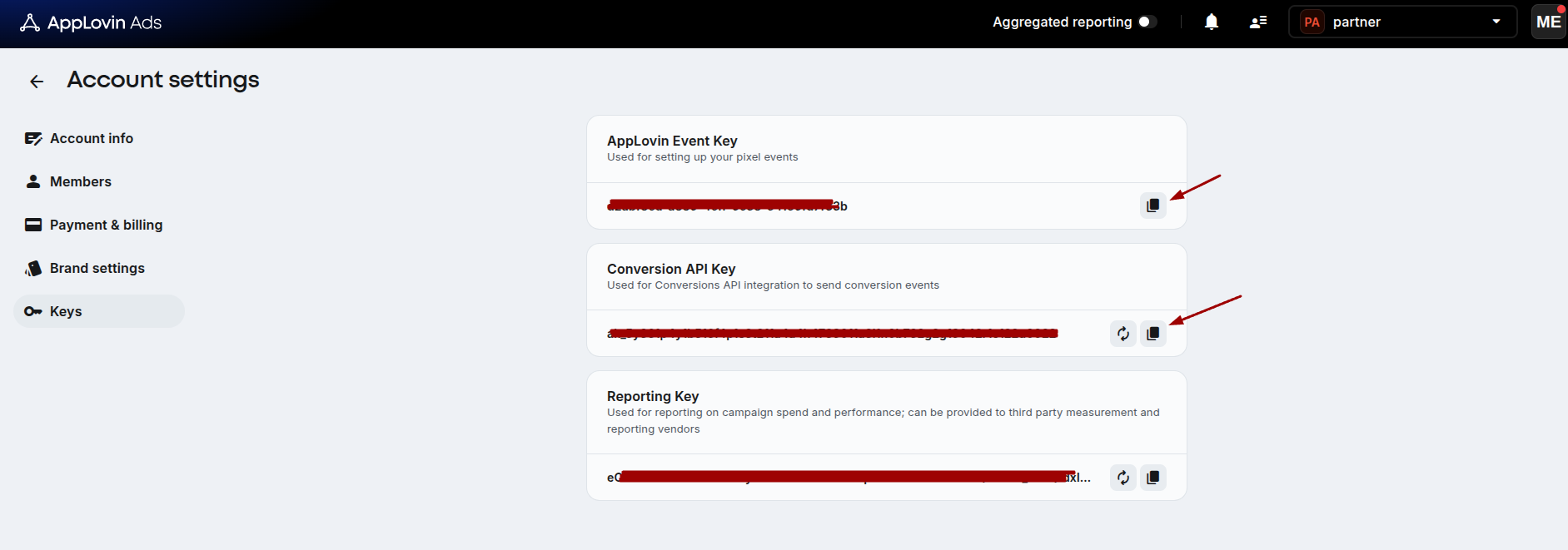
From your AppLovin account, navigate to Keys
Copy the required API credentials needed for the integration.
- AppLovin Event Key (Pixel ID)
- Conversion API Key (API key)
Make sure to keep these credentials accessible, as they will be required when creating the integration in ClickFlare.
Integrating AppLovin Conversion API in ClickFlare
Follow the steps below to add the AppLovin Conversion API integration.
- Go to the Integrations tab.
In the Conversion API Integrations section, click on Add Integration.
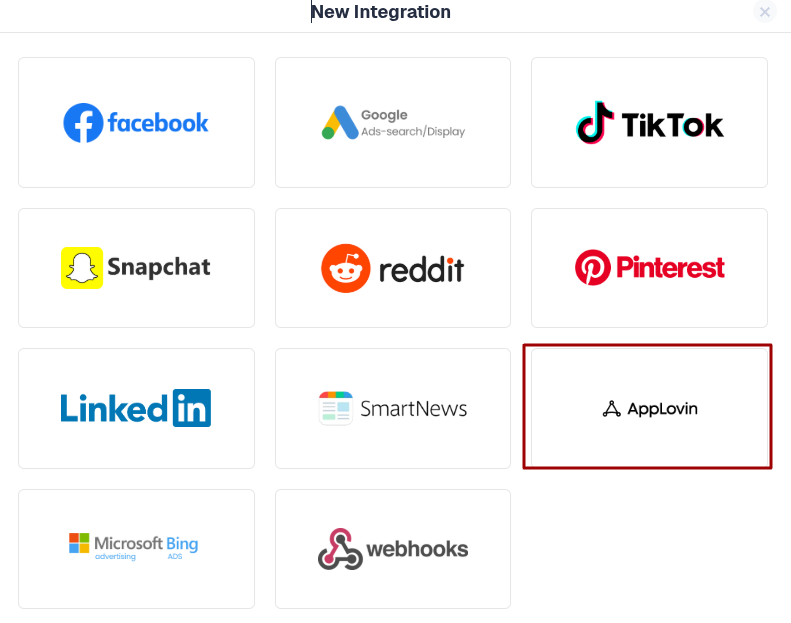
Select AppLovin from the list of available integrations.
- Configure the AppLovin Conversion API integration
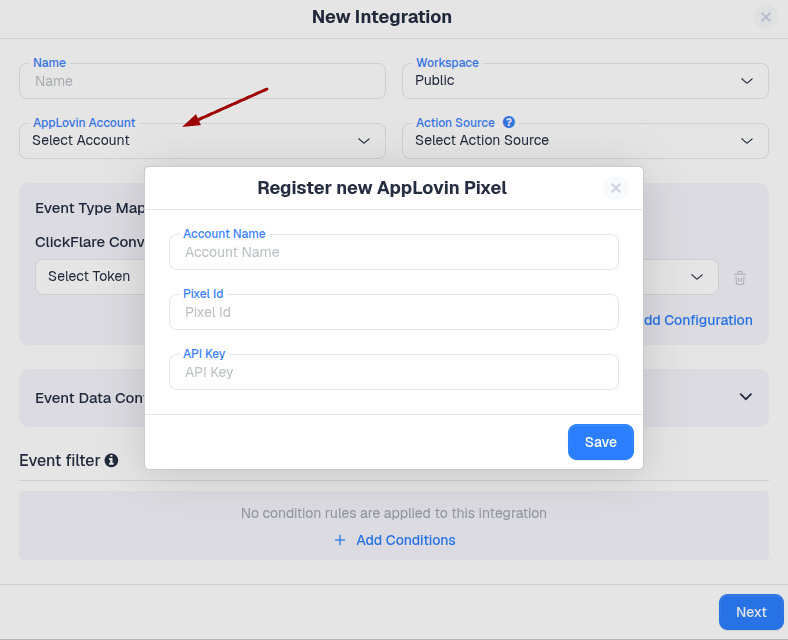
In the integration screen, enter the required AppLovin API credentials.
After entering the required information, configure the integration settings according to your tracking setup.
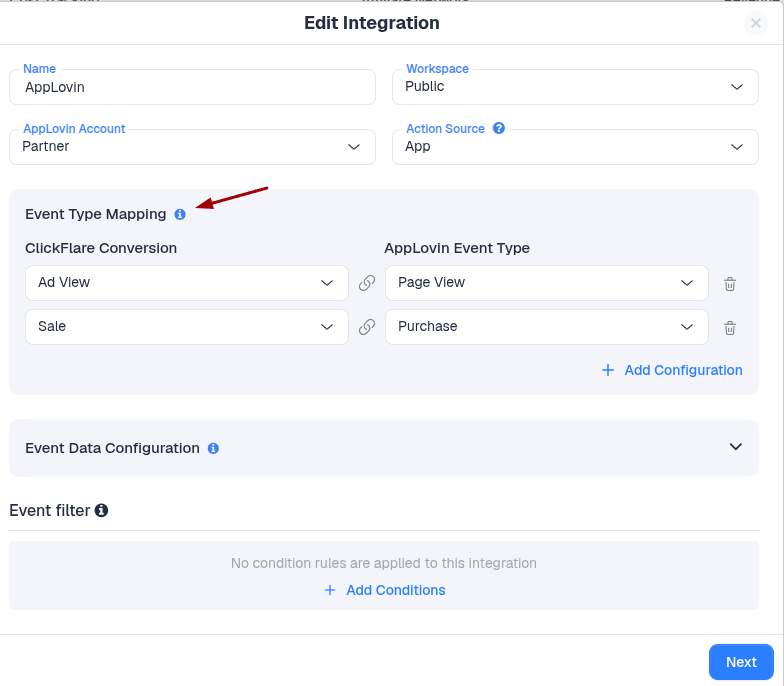
Define which ClickFlare events will be sent to AppLovin
Specify which ClickFlare-tracked events should be reported to AppLovin.
Using the Event Type Mapping, you can map ClickFlare events to the corresponding AppLovin conversion events.
Configure the event data
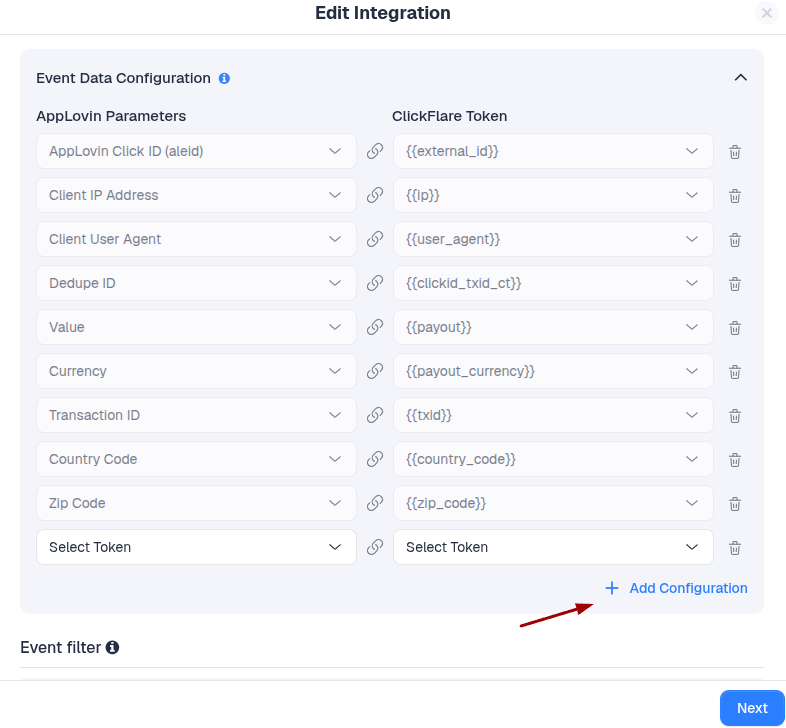
After mapping the events, define what information should be sent to the AppLovin Conversion API.
Some fields may already be populated and cannot be modified, as ClickFlare sends this information by default.
If you want to send additional information with each event, you can configure it through the Event Data Configuration section.
Note: Some parameters are required by the Traffic Source and cannot be changed or removed.
To learn more about adding additional parameters, click here.
Save the integration
Once you have completed all configurations, click Save.
The new AppLovin Conversion API integration will now appear under the Conversion API Integrations section.
Congratulations, you have successfully configured the AppLovin Conversion API integration in ClickFlare.

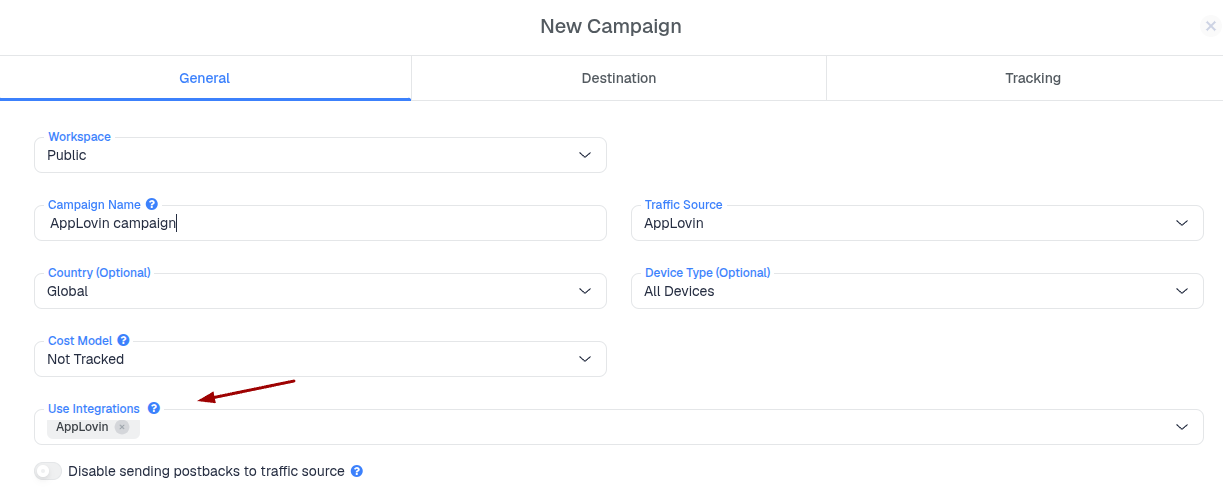
From now on, after you connect the CAPI integration at the campaign level, ClickFlare will automatically send your selected conversion events from that campaign to AppLovin through the Conversion API.