By using ClickFlare's Conversion API integration for LinkedIn Ads, you'll be able to report conversion events from ClickFlare back to LinkedIn through LinkedIn's Conversions API (CAPI). This works just like server-to-server postbacks, but with a direct API connection — giving LinkedIn better signal for campaign optimization.
Why Should I Use the Conversion API for LinkedIn Ads?
As privacy restrictions have reduced the effectiveness of browser-based tracking pixels, LinkedIn's Conversions API provides a server-side alternative for reporting conversion events. By sending conversions directly from ClickFlare to LinkedIn via CAPI, you:
- Improve attribution accuracy — conversions are reported server-side, bypassing browser limitations, ad blockers, and cookie restrictions.
- Optimize campaigns more effectively — LinkedIn's algorithm receives higher-quality conversion data, leading to better bid optimization and audience targeting.
- Maintain data consistency — every tracked conversion in ClickFlare can be reliably passed back to LinkedIn, regardless of the user's browser environment.
What You'll Need for the Integration
- An active ClickFlare account
- An active LinkedIn Ads account with Campaign Manager access
- Your LinkedIn Ad Account ID
- A LinkedIn CAPI Access Token
- A Conversion Rule configured in LinkedIn Campaign Manager
Where to Find Your LinkedIn CAPI Information
Before setting up the integration in ClickFlare, you'll need to gather a few items from LinkedIn Campaign Manager.
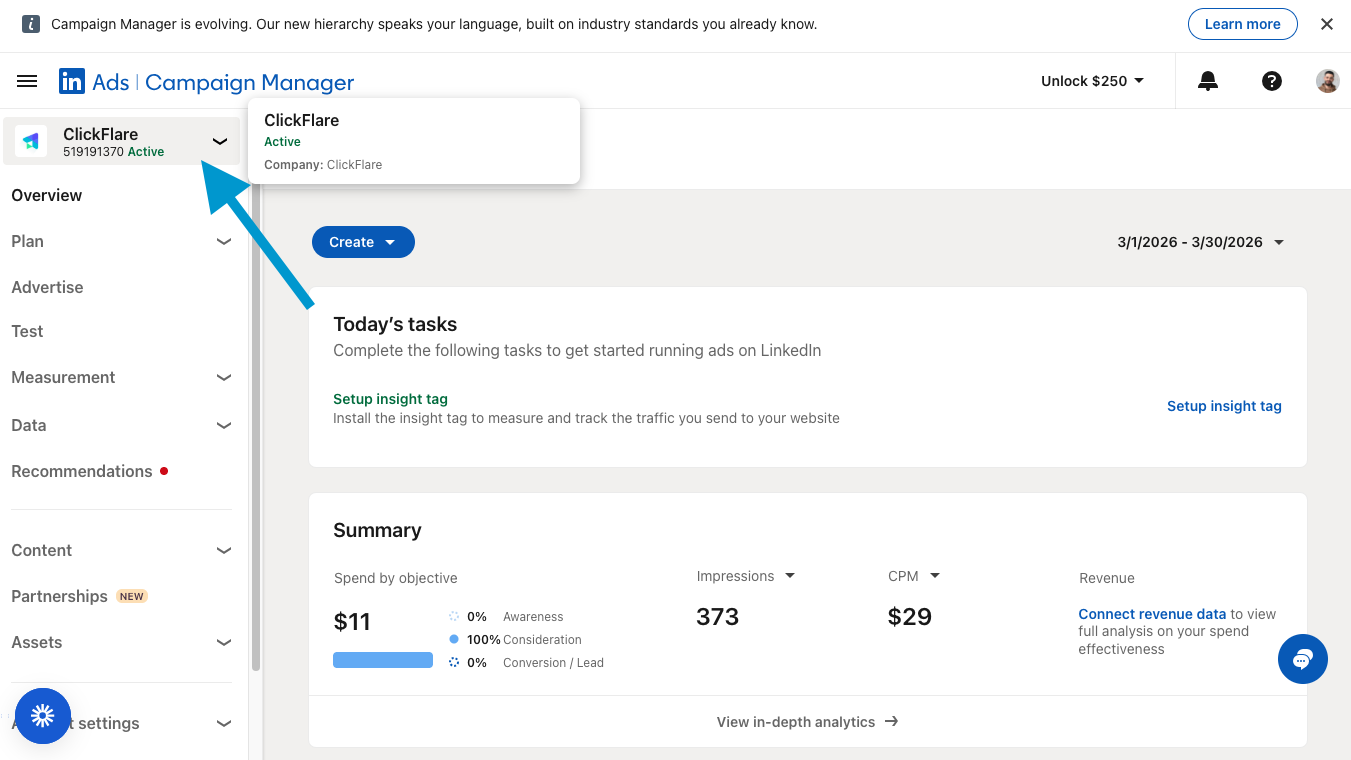
Ad Account ID
- Log in to LinkedIn Campaign Manager.
- Your Ad Account ID is the numerical ID displayed beneath your account name in the top-left corner (e.g., 519191370), or in the Campaign Manager URL after /accounts/.
Access Token and Conversion Rule
The Access Token authorizes ClickFlare to send conversion events to your LinkedIn account. You'll generate it from the Direct API section in Signals manager.
- In LinkedIn Campaign Manager, click Data in the left-hand menu, then click Signals manager.
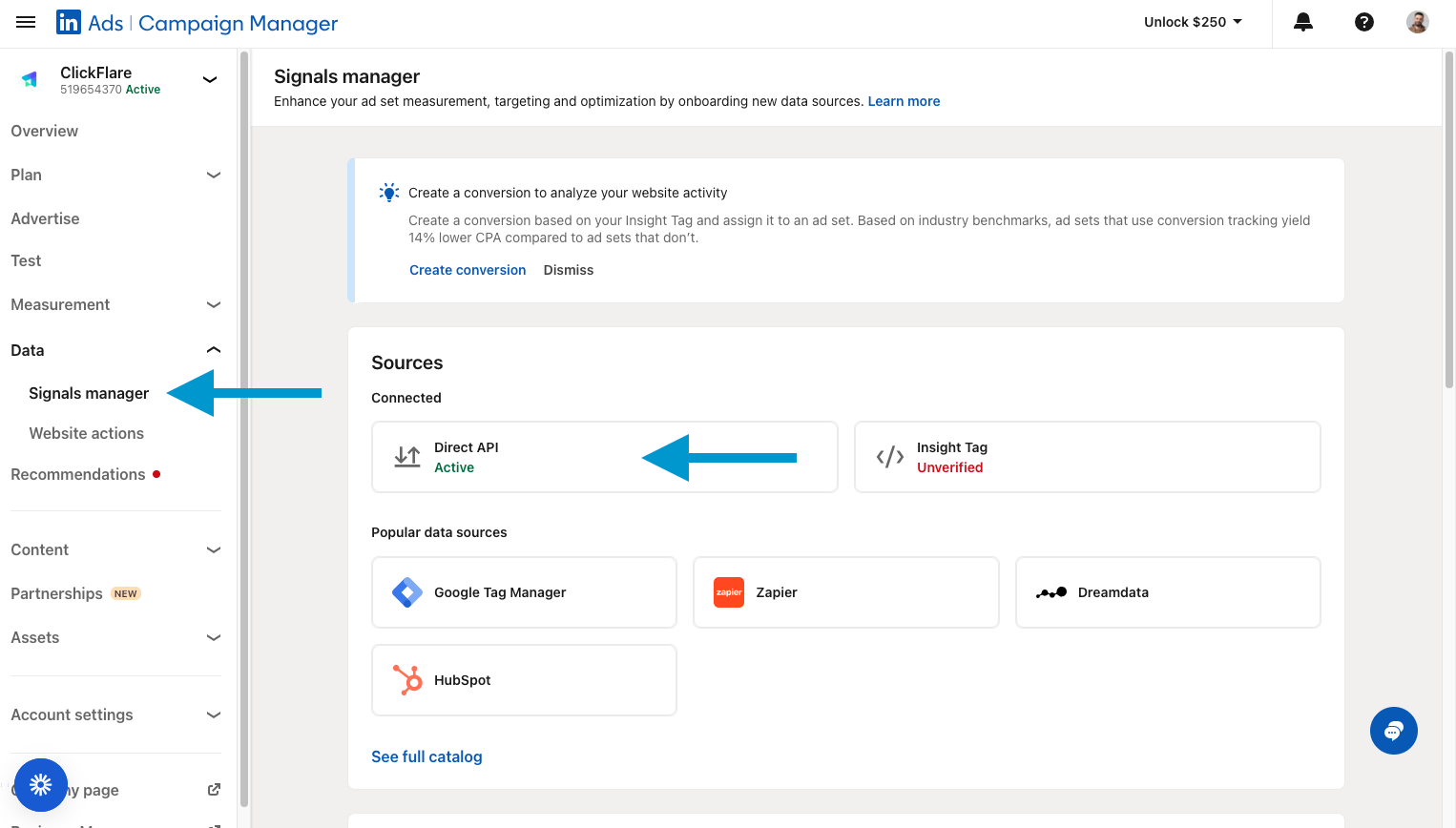
- Under Sources, click Direct API.
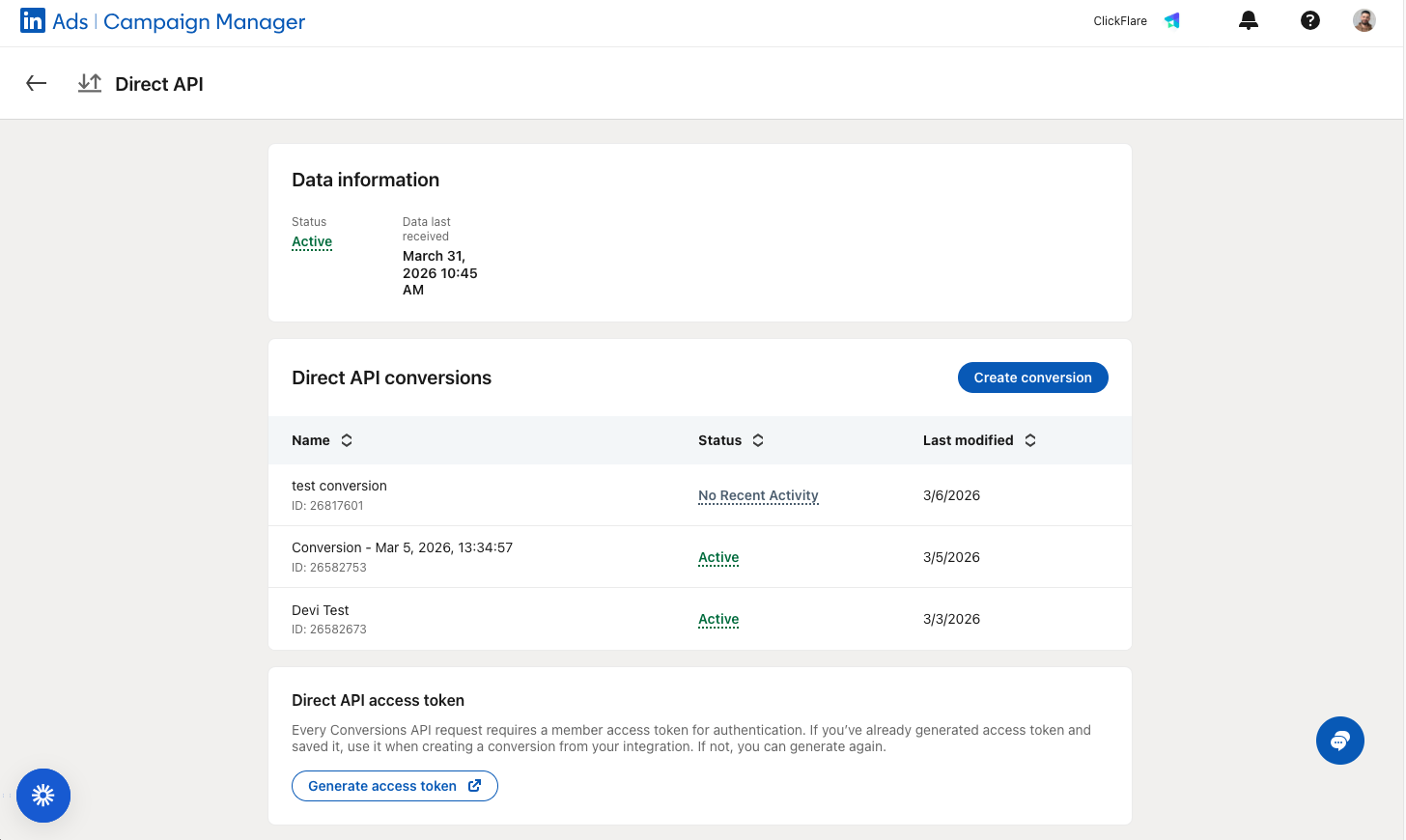
- On the Direct API page, you'll see your existing Direct API conversions listed. If you don't have one yet, click Create conversion to set up a new conversion rule with your desired event name, type, and attribution settings. Take note of the conversion rule name, you'll need to select it in ClickFlare.
- Scroll down to the Direct API access token section and click Generate access token. Copy the token and store it securely. You'll need it during the ClickFlare setup.
📝 Note: Access tokens may expire or need to be regenerated. If the token has expired, you'll see an error in ClickFlare's Postback status logs. To fix it, come back here and generate a new token, then update it in ClickFlare.
Setting Up the Integration in ClickFlare
- Inside ClickFlare, go to Integrations from the left-hand sidebar menu and navigate to the Conversion API tab. Click Add Integration and select LinkedIn from the list.
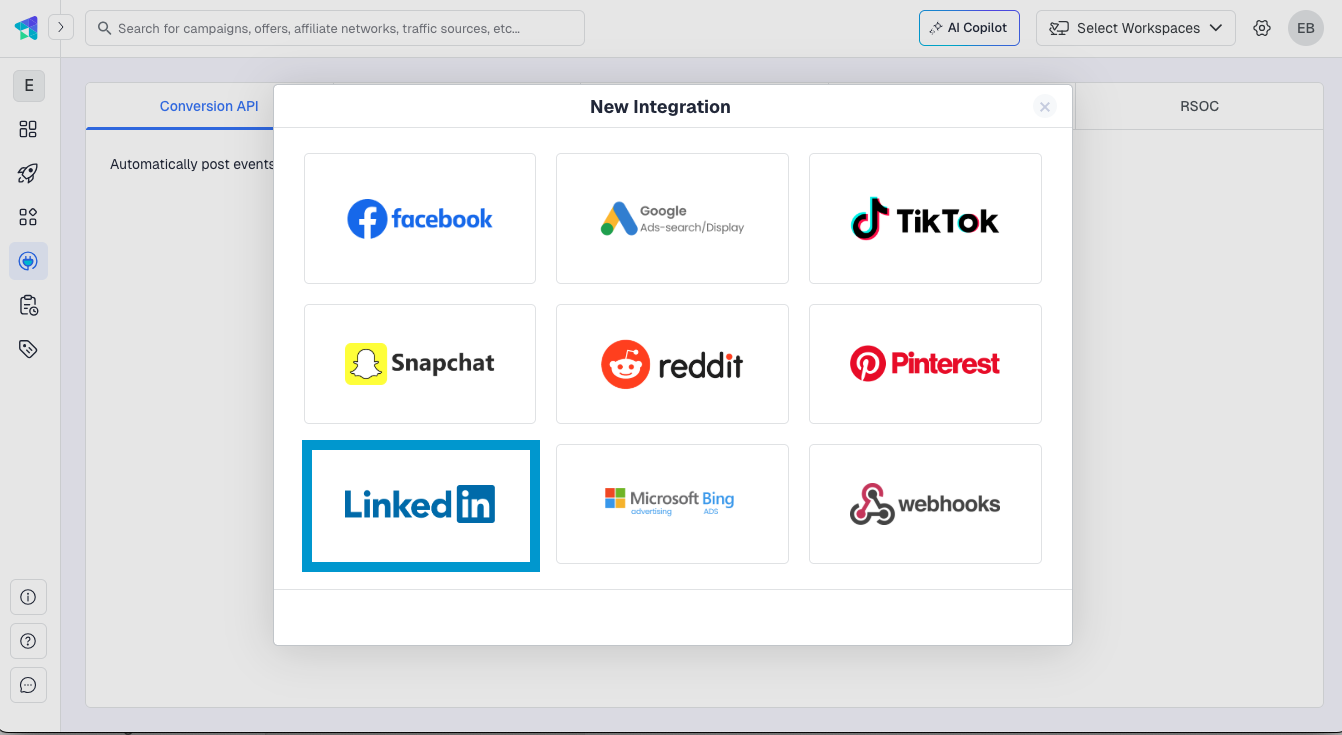
- Set the Workspace, enter a Name for the integration, and under LinkedIn Tokens, click + New token to register your LinkedIn CAPI credentials.
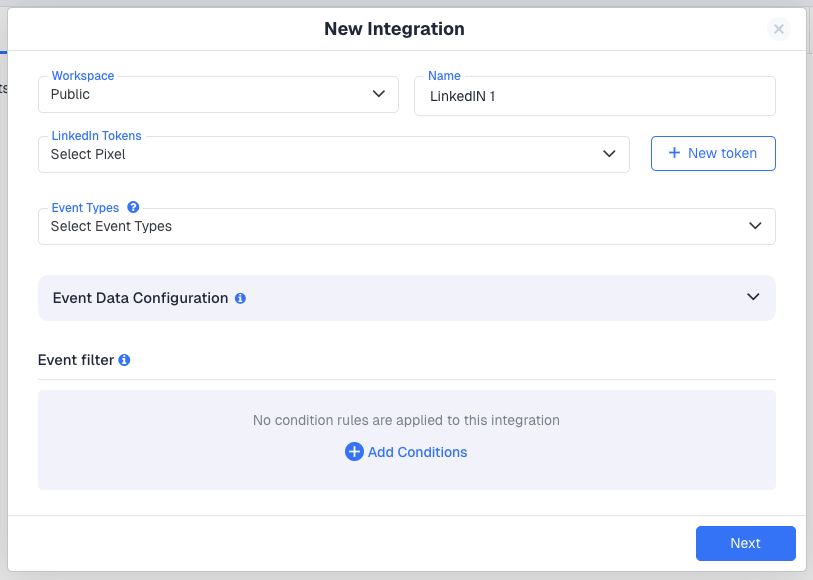
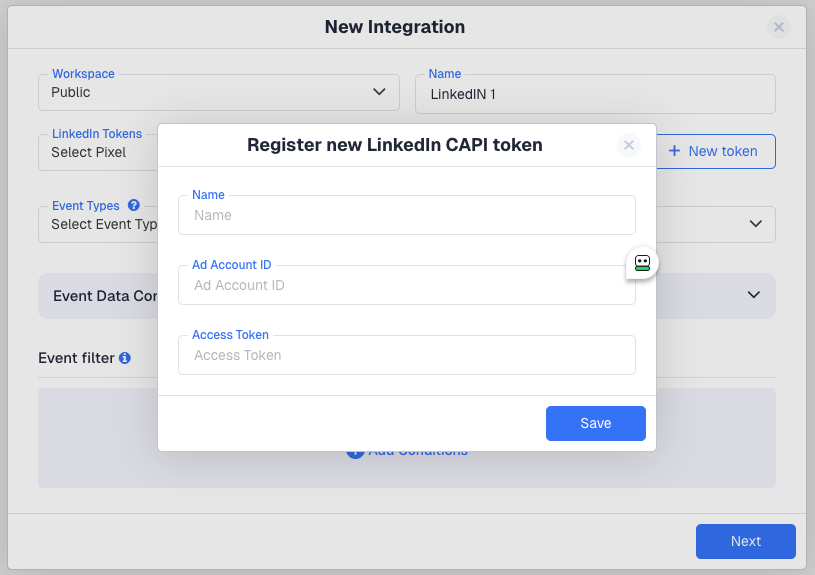
- In the Register new LinkedIn CAPI token dialog, enter a Name for the token, your Ad Account ID, and the Access Token you generated in LinkedIn Campaign Manager. Click Save.
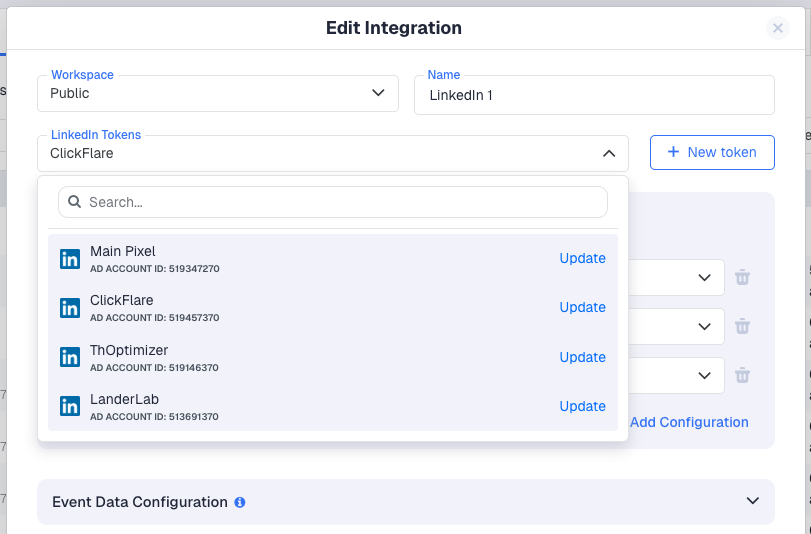
- Select the newly created token from the LinkedIn Tokens dropdown, then choose a Conversion Rule from the dropdown (this maps to the rule you created in LinkedIn Campaign Manager).
- Under Event Types, select which ClickFlare-tracked events should be posted to LinkedIn.
- Expand the Event Data Configuration section to review and customize how ClickFlare data maps to LinkedIn parameters. The default mapping includes:
LinkedIn Parameter ClickFlare Token Description LinkedIn Click ID {{external_id}} Maps the LinkedIn click identifier for accurate attribution Amount {{payout}} Sends the conversion value/payout amount Currency Code {{payout_currency}} Sends the currency of the conversion value You can add additional mappings by clicking + Add Configuration.
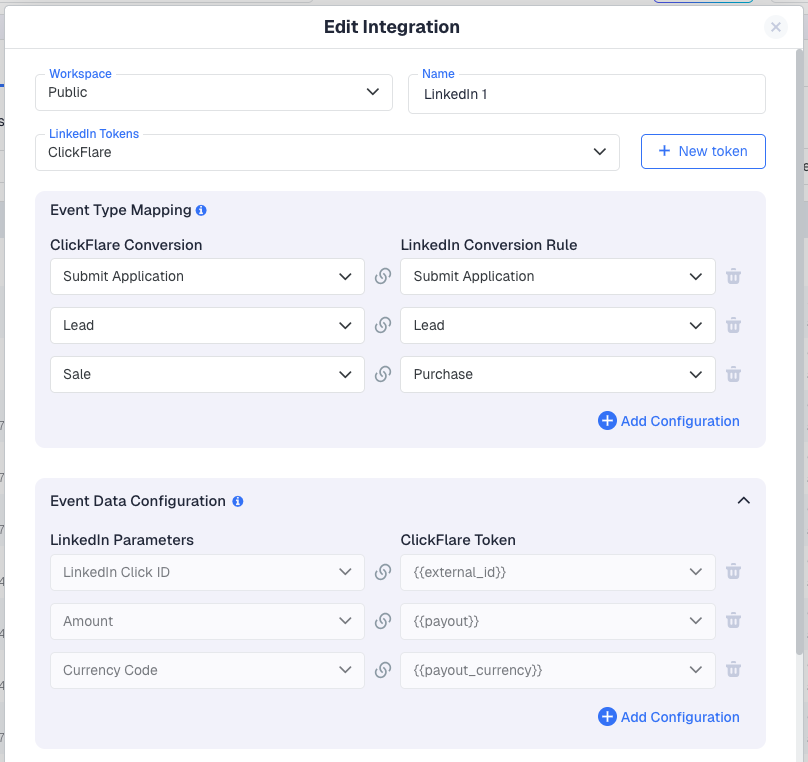 📝 Note: Some parameters are required by LinkedIn and cannot be changed or deleted. The LinkedIn Click ID → {{external_id}} mapping is essential for proper attribution.
 - (Optional) Under Event filter, add conditions to control which conversions get posted to LinkedIn (e.g., filter by geo, device, or campaign). If you don't need filtering, leave this as-is.
- Click Next. You'll be prompted to select one or more ClickFlare campaigns to assign this integration to. Every time those campaigns register a conversion, ClickFlare will use this integration to fire it to LinkedIn via CAPI. Once you've selected your campaigns, click Save.
Your new LinkedIn CAPI integration will now appear under the Conversion API Integrations section.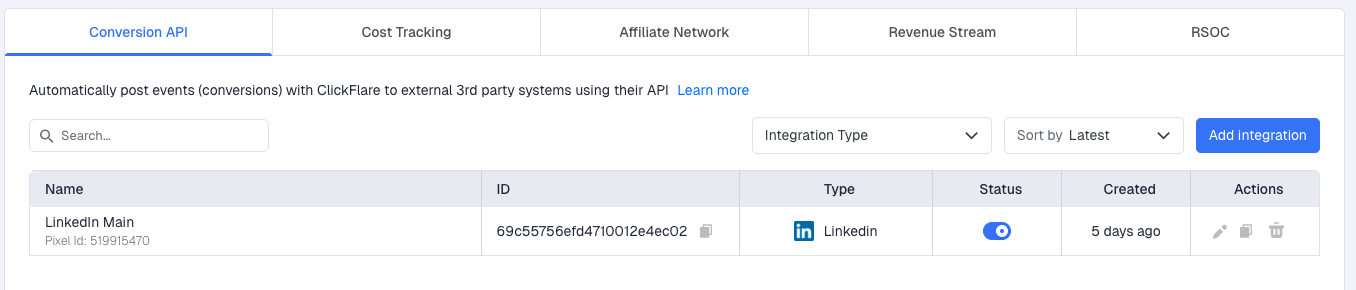
FREQUENTLY ASKED QUESTIONS
Got questions? Find the answers below:
Q1: Why aren't my conversions showing up in LinkedIn Campaign Manager?
A1: Check that the CAPI Access Token is still valid, verify the Conversion Rule selected in ClickFlare matches the one in LinkedIn, confirm the Ad Account ID is correct, and make sure conversions are actually being tracked in ClickFlare first.
Q2: What is the LinkedIn Click ID and why is it important?
A2: The LinkedIn Click ID (li_fat_id) is a unique identifier that LinkedIn appends to the destination URL when a user clicks your ad. ClickFlare captures this value and maps it via the {{external_id}} token. This is what allows LinkedIn to attribute a conversion back to a specific ad click.
Q3: Can I send multiple event types to LinkedIn through a single integration?
A3: Yes. When configuring the integration, you can select multiple event types under the Event Types dropdown. Each tracked event that matches will be posted to LinkedIn via CAPI.
Q4: How do I regenerate an expired Access Token?
A4: In LinkedIn Campaign Manager, go to Data → Signals manager → Direct API, scroll to the Direct API access token section, and click Generate access token. Then in ClickFlare, go to Integrations → Conversion API, find your LinkedIn integration, click Update in the LinkedIn Tokens dropdown, and paste the new token.
Q5: How do I prevent LinkedIn from counting duplicate conversions?
A5: Make sure the LinkedIn Click ID is mapped to {{external_id}} in the Event Data Configuration. This allows LinkedIn to deduplicate events that may be reported by both the Insight Tag and CAPI.
Q6: My CAPI Access Token expired. What should I do?
A6: Generate a new Access Token in LinkedIn Campaign Manager. Then in ClickFlare, go to Integrations → Conversion API, find your LinkedIn integration, click Update in the LinkedIn Tokens dropdown, and paste the new Access Token.
