Thanks to ClickFlare's API integration with LinkedIn, you'll be able to track the cost of your Campaigns, Ad Groups, and Ads directly from ClickFlare — making tracking and optimization easier than ever before.
In this article, we'll go over the step-by-step process of setting up the Cost Tracking integration with LinkedIn.
What You'll Need for the Integration
- An active ClickFlare account
- An active LinkedIn Ads account
- LinkedIn login credentials
Where to Find Your LinkedIn Ad Account ID
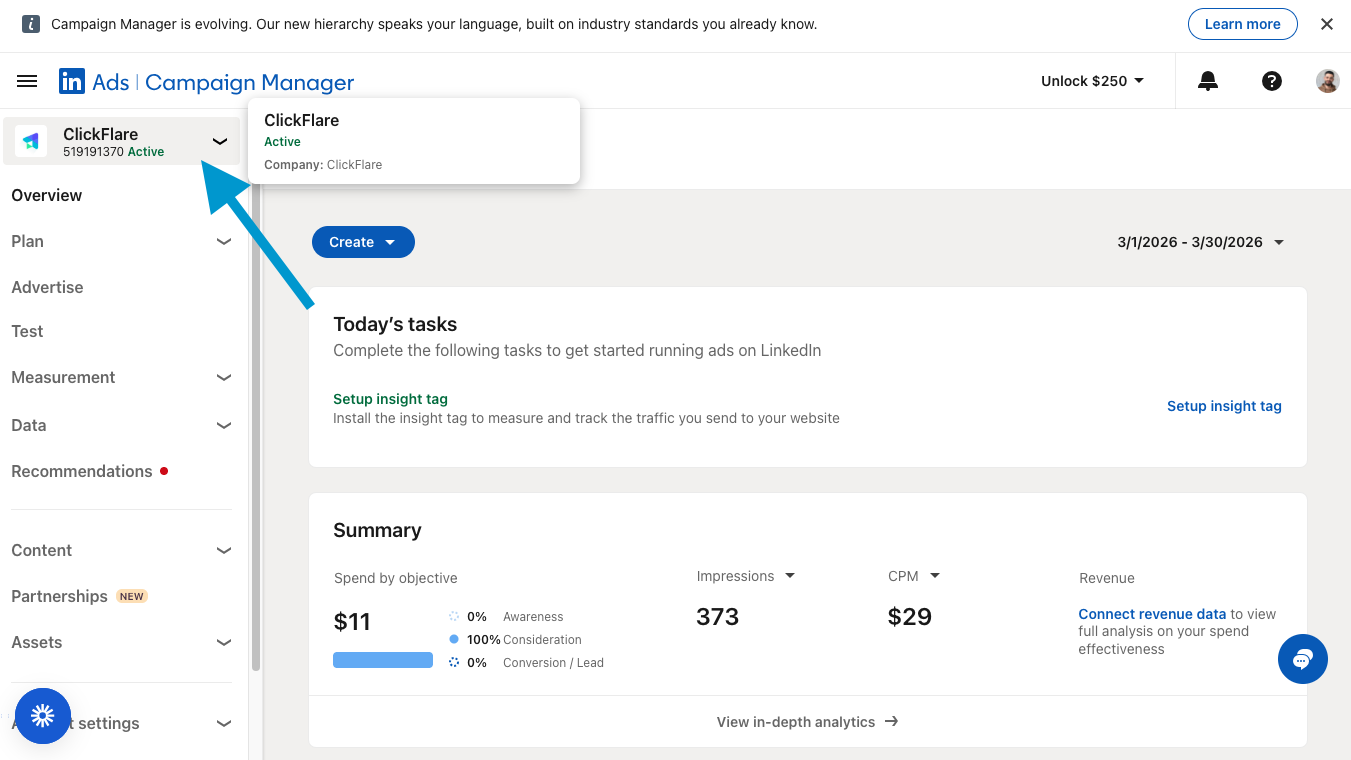
Before setting up the integration in ClickFlare, you'll need to know your LinkedIn Ad Account ID. Here's how to find it:
- Log in to LinkedIn Campaign Manager.
- In the top-left corner, you'll see your account name. Click on it to open the account switcher.
- Your Ad Account ID is the numerical ID displayed beneath each account name (e.g., 519191370).
Setting Up the LinkedIn Cost Tracking Integration in ClickFlare
Follow the steps below to add the LinkedIn Cost Tracking integration.
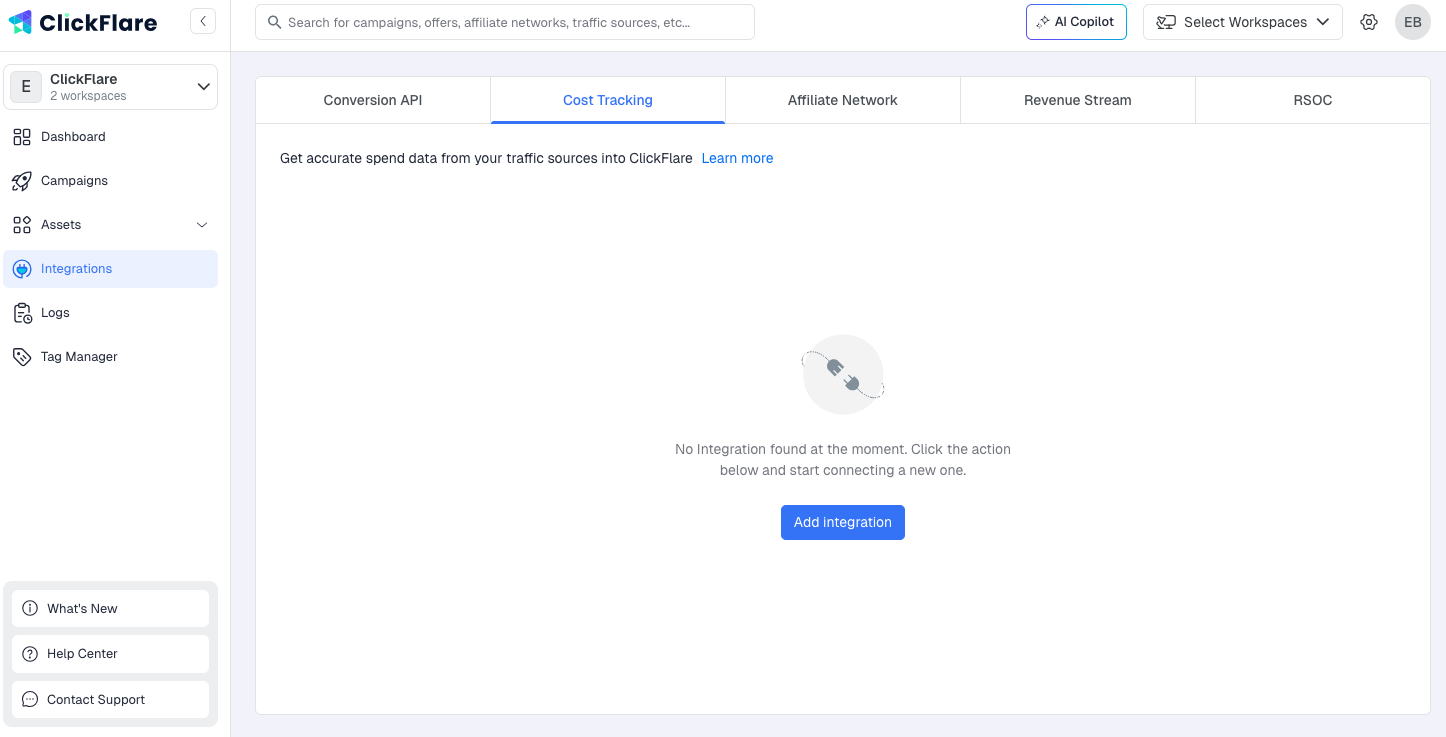
- Inside ClickFlare, go to Integrations from the left-hand sidebar menu and navigate to the Cost Tracking tab.
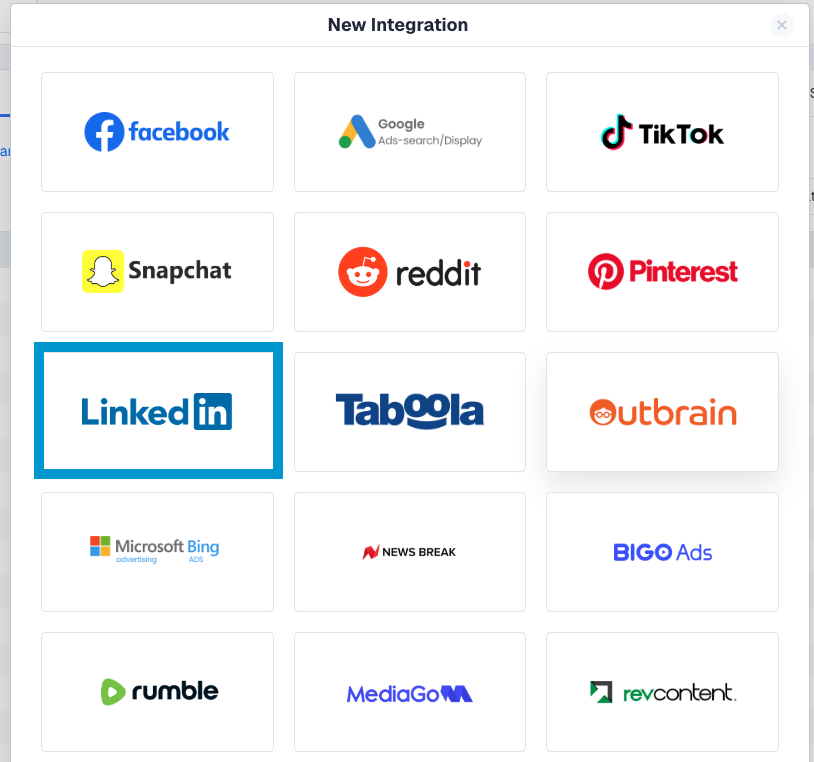
- Click the Add Integration button in the top-right corner and select LinkedIn from the list.
- Give your integration a Name and connect your LinkedIn account from the LinkedIn Accounts dropdown.
ℹ️ If you already have a LinkedIn account connected to ClickFlare, you'll see it listed under "Use an existing account." If not, click the "Sign in with LinkedIn" button to authorize ClickFlare access to your advertising account.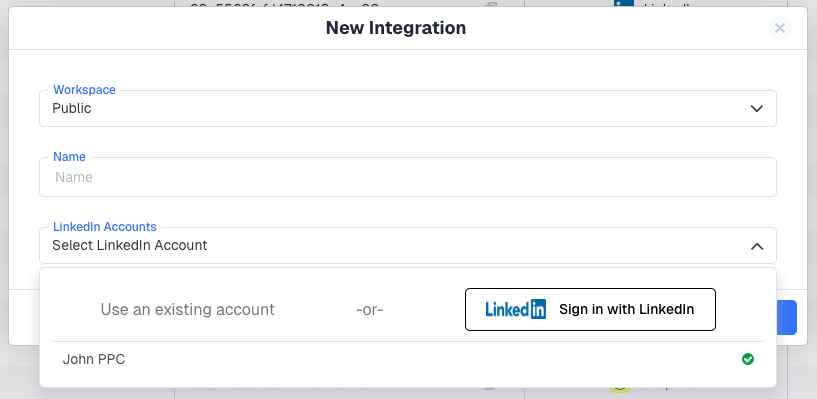
- After connecting, the Ad Accounts dropdown will populate with the ad accounts associated with your LinkedIn profile - select one or more Ad Accounts from which you want costs to be pulled, then click Save.
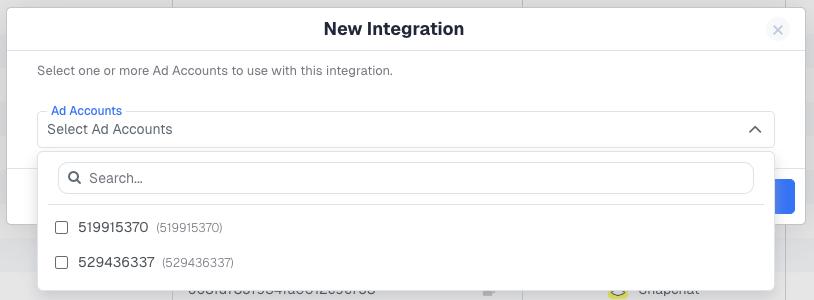
📝 Note: You only need to create one integration per LinkedIn account. In a single integration, you can select multiple ad accounts. ClickFlare will automatically associate costs to the correct campaigns. - (Optional) You can specify which traffic source configurations should use this cost integration. If you skip this, you can assign the cost integration later from the traffic source configuration settings.
⚠️ Important: Make sure that the traffic source configurations you select belong to LinkedIn as the traffic source. - Go to your LinkedIn traffic source configuration settings and add the newly created cost integration under the Cost Integration settings.
⚠️ Important: When adding or editing a Traffic Source configuration, remember to select the new integration you just added. Failing to do so will result in costs not being pulled.
Congratulations! You've just finalized the LinkedIn cost tracking integration in ClickFlare. From now on, you'll be able to see the cost of your LinkedIn campaigns directly inside ClickFlare.
FREQUENTLY ASKED QUESTIONS
Got questions? Find the answers below:
Q1: Why aren't my LinkedIn costs showing in ClickFlare?
A1: Make sure you've assigned the cost integration to your LinkedIn traffic source configuration. If the integration is created but not linked to a traffic source configuration, costs won't be pulled. Also verify that your LinkedIn account permissions haven't expired.
Q2: Can I connect multiple LinkedIn Ad Accounts in one integration?
A2: Yes. When setting up the integration, you can select multiple ad accounts from the Ad Accounts dropdown. ClickFlare will automatically match costs to the correct campaigns.
Q3: How often does ClickFlare pull cost data from LinkedIn?
A3: The pull frequency depends on your plan. On Starter and Pro, costs are pulled every 60 minutes. On Master and above, every 30 minutes. Faster updates (every 15 or 5 minutes) are available as add-ons on all plans. Between pulls, ClickFlare estimates cost in real time based on each campaign's last known CPC.
For full plan details, see ClickFlare Pricing.
Q4: Do I need to re-authorize if I change my LinkedIn password?
A4: Changing your LinkedIn password may revoke the OAuth token. If costs stop updating, go to Integrations → Cost Tracking, edit your LinkedIn integration, and re-authorize your account by clicking "Sign in with LinkedIn" again.
Q5: Can I use this integration with LinkedIn Lead Gen Forms campaigns?
A5: Yes. The cost tracking integration pulls spend data from all campaign types in your LinkedIn Ad Account, including Lead Gen Forms, Sponsored Content, Message Ads, and more.
Related Resources
- LinkedIn Conversion API Integration
- Understanding ClickFlare Events
- Creating Your First Campaign
- Facebook Cost Tracking Integration
- LinkedIn Campaign Manager Help
