
Thanks to ClickFlare’s API integration with Pinterest Ads, you can automatically pull the cost data of your Pinterest campaigns directly into ClickFlare.
This lets you centralize spend tracking, reporting, and optimization across platforms — without manual cost uploads or spreadsheets.
What you'll need for the integration
- An active ClickFlare account
- An active Pinterest Business account with access to Ads Manager
- Your Pinterest login credentials
How Pinterest Cost Integration Works
ClickFlare connects to the official Pinterest Ads API and automatically retrieves your campaign spend.
Once connected, ClickFlare pulls cost data from Pinterest at the following levels:
-
Campaign level
-
Ad group level
-
Ad (Pin promotion) level
Only spend data is fetched directly from Pinterest.
Other performance metrics such as CPC, CPM, CTR, and ROI are calculated inside ClickFlare using:
-
Cost data from Pinterest
-
Clicks/impressions tracked by ClickFlare through your tracking URLs
This keeps all your key performance metrics consistent and up to date in a single dashboard.
Setting Up the Pinterest Cost Integration
Follow the steps below to connect your Pinterest Ads account to ClickFlare.
-
In ClickFlare, open the left-side menu and go to
Integrations → Cost Tracking Integrations. -
Click Add Integration.
-
From the list of available integrations, select Pinterest.
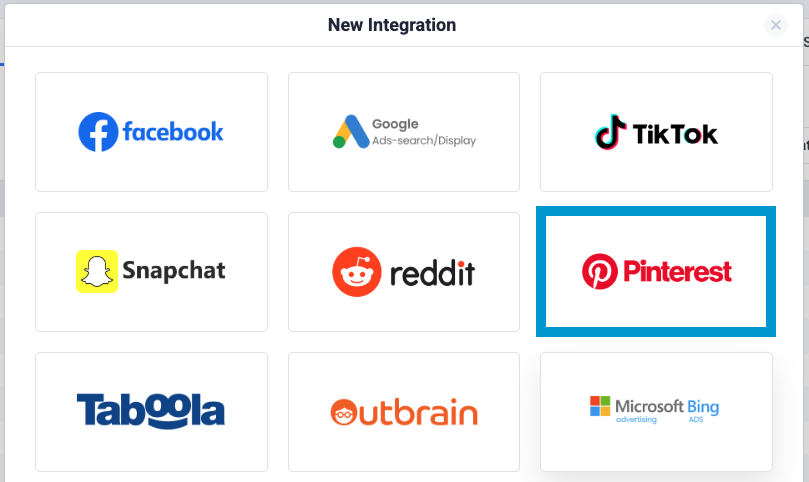
Step 1 — Authorize Your Pinterest Account
When you add the Pinterest integration, ClickFlare will ask you to connect your Pinterest Ads account.
-
If you already have a Pinterest login connected to ClickFlare, you’ll see it under Use an existing account.
Just select it and continue. -
If not, click Sign in with Pinterest.
You’ll be redirected to Pinterest’s login/authorization screen, where you must allow ClickFlare to access your advertising data.
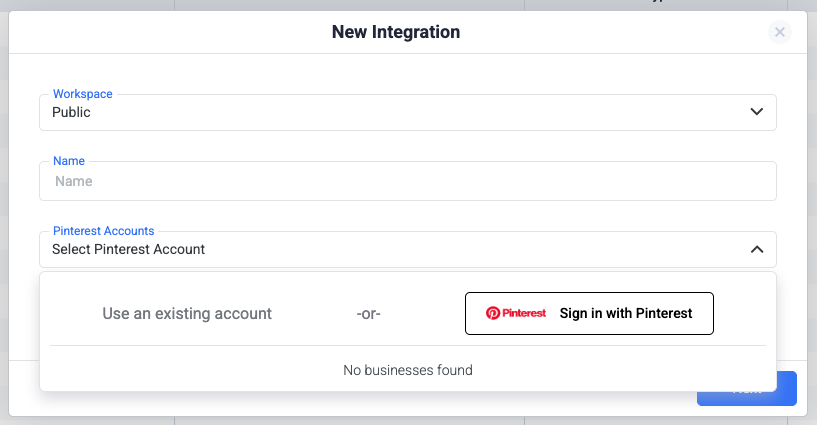
After you confirm access, you’ll be redirected back to ClickFlare and your Pinterest Ads login will be available in the setup window.
Step 2 — Select Ad Accounts
Once your Pinterest login is connected, click Next and choose which ad account(s) you want ClickFlare to pull cost data from.
-
You can select one or multiple ad accounts under the same Pinterest login.
-
ClickFlare will automatically sync campaign spend for each selected ad account.
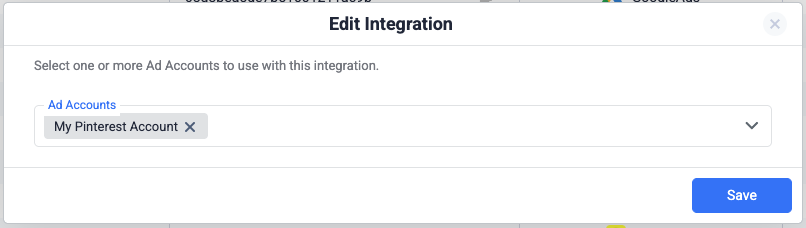
In most cases, you only need one Pinterest cost integration per Pinterest login. Within that integration, you can include multiple ad accounts that your user has access to.
Step 3 — (Optional) Assign to a Traffic Source Configuration
You can optionally link your Pinterest cost integration directly to one or more Traffic Source Configurations in ClickFlare.
-
If you do this here, ClickFlare will automatically use this cost integration whenever that Pinterest traffic source is selected in a campaign.
-
If you skip this step, you can always assign the integration later inside the Traffic Source settings.
Make sure the Traffic Source template you select here is Pinterest.
Using a traffic source different from the template can prevent spend from being matched to your campaigns correctly.
When you’re done, click Save.
Step 4 — Verify Cost Data Sync
After saving the integration, ClickFlare will start syncing cost data from Pinterest automatically.
To verify everything is working:
-
Open any active Pinterest campaign in your ClickFlare reports.
-
Look at the Cost column.
-
Confirm that you see cost values that match what you see in Pinterest Ads Manager (after allowing for the sync delay).
The cost update frequency depends on your ClickFlare plan and whether you have a faster cost-update add-on enabled.
Cost pulls can range from every 60 minutes down to every 5 minutes for eligible plans and add-ons.
How Cost Matching Works
ClickFlare matches Pinterest’s cost data to your campaigns based on:
-
Unique Pinterest campaign and ad identifiers
-
Tracking parameters passed through your campaign URLs
When you use the Pinterest Traffic Source template in ClickFlare:
-
All required macros/parameters are automatically added to your tracking URLs.
-
Pinterest’s campaign/ad IDs are captured by ClickFlare and used to align incoming cost data with the correct campaigns, paths, and reports.
This way, spend, clicks, and conversions stay perfectly in sync across both platforms without extra manual configuration.
Troubleshooting
| Issue | Possible Cause | Solution |
|---|---|---|
| No cost data visible | Integration not connected properly | Reauthorize your Pinterest account in ClickFlare and ensure the correct ad accounts are selected. |
| Partial or missing campaign costs | Incorrect traffic source mapping | Verify the correct Pinterest traffic source configuration is linked to this cost integration. |
| Delayed updates | API sync delay | Wait until the next scheduled sync window |
| Incorrect currency displayed | Ad account set to a different currency | Check your Pinterest Ads account currency — ClickFlare displays costs using that same currency. |
| Cost discrepancy between Pinterest and ClickFlare | Timezone mismatch between Pinterest Ads and ClickFlare | Make sure both your Pinterest Ads account and your ClickFlare are set to the same timezone. |
FREQUENTLY ASKED QUESTIONS
Got questions? Find the answers below:
Q1: Do I need to tag my Pinterest URLs differently for cost tracking?
A1: No additional tagging is required beyond using the Pinterest traffic source template in ClickFlare. That template already includes the parameters needed for cost matching.
Q2: Does the integration pull impressions, clicks, or conversions from Pinterest?
A2: The Pinterest cost integration is focused on spend. Clicks, impressions, and conversions are tracked directly by ClickFlare (or via your conversion setup), and combined with Pinterest cost data for full performance reporting.
Q3: Can I use multiple Pinterest integrations in the same account?
A3: Yes. For example, you might use separate integrations for different teams or business units. Just make sure each Pinterest integration is assigned to the correct Traffic Source Configurations and Workspaces (if you’re using Workspaces).
