Where to Set the Cost Model
The cost model is set per campaign on the General tab of the campaign form, next to the Default cost value field. You select the model from a dropdown and enter a numeric value alongside it.
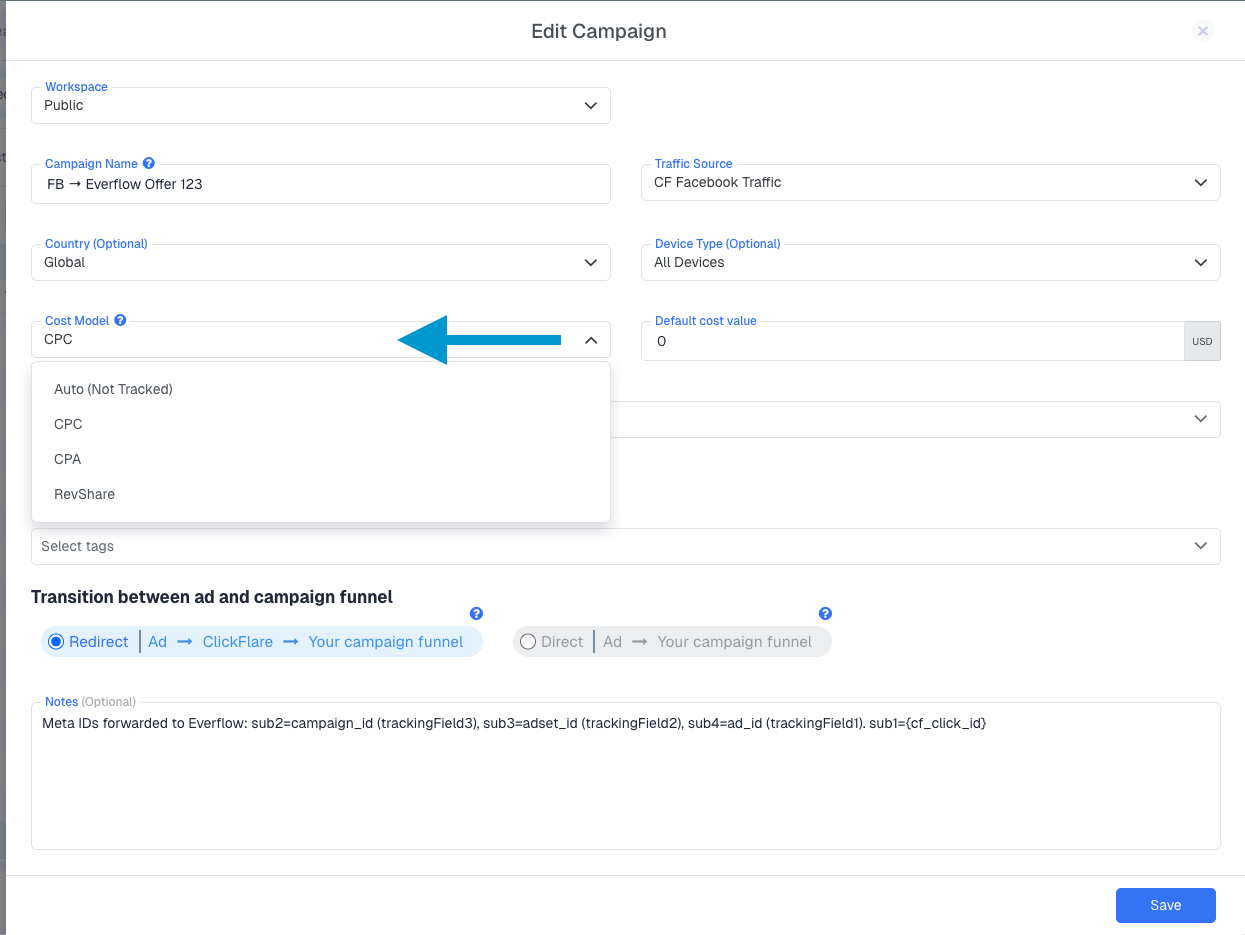
ClickFlare can import cost data automatically from your ad platform via a cost-tracking integration (such as Meta Ads or TikTok Ads). When an integration is connected, ClickFlare pulls real spend data directly from your ad account, so you do not need to enter a fixed value manually. If no integration is connected, you can enter a static cost value in the Default cost value field as a fallback.
The Four Cost Models
CPC (Cost Per Click)
You pay a fixed amount for every click on your ad. Enter the cost per click in the Default cost value field and ClickFlare multiplies it by the total number of visits recorded on the campaign to calculate total spend.
Total Cost = Cost Per Click × Visits
Use CPC when your traffic source bills you on a per-click basis, such as most native ad networks, search platforms, and push networks.
CPA (Cost Per Action)
You pay a fixed amount each time a specific action occurs, typically a purchase, lead, or install. Enter the cost per action and ClickFlare multiplies it by the number of conversions recorded to calculate total spend.
Total Cost = Cost Per Action × Conversions
Use CPA when your traffic source charges you per conversion rather than per click.
RevShare (Revenue Share)
You pay the traffic source a percentage of the revenue you earn. Enter the percentage and ClickFlare automatically calculates the cost for each conversion as that share of the conversion payout.
Cost Per Conversion = Payout × (RevShare % / 100)
For example, if a conversion pays $10.00 and your RevShare is 30%, ClickFlare records $3.00 as the cost for that conversion. This is common in affiliate and search arbitrage setups where the traffic source takes a cut of each sale rather than charging a flat click or action fee.
The percentage is calculated against the payout ClickFlare receives for each conversion event, not against total revenue over a period. Every conversion is calculated independently.
Auto (Not Tracked)
Despite the label, this option does not simply ignore cost data. When selected, ClickFlare automatically assigns cost from your connected API cost integration if one is active on the campaign. You do not enter a fixed value; ClickFlare pulls actual spend from your ad platform and applies it automatically.
If you also have a cost macro being passed via URL token (for example, cost=0.5 in the Campaign URL), the API integration takes priority and the macro value is ignored. The API is always the source of truth when this model is selected.
If no cost integration is connected, cost will show as $0.00 and Profit and ROI will not be meaningful, unless you are passing cost through a cost macro.
This option is most powerful when paired with a platform integration (Meta Ads, TikTok Ads, and so on). Without one, it behaves like a true not-tracked setting and no cost data will be recorded.
Which Columns Are Affected
The cost model you choose directly determines which columns in your stats table are populated and meaningful:
- Cost: calculated from the cost model. Shows $0.00 if Not Tracked (Auto) is selected and no cost integration is active and no cost macro is being passed from the ad network.
- Profit: calculated as Revenue minus Cost. Requires a cost model and conversion revenue to be meaningful.
- ROI: calculated as Profit divided by Cost, expressed as a percentage. Requires a cost model to be set.
Static cost values do not account for fluctuating bid prices or auction dynamics. If your traffic source supports it, connect a cost-tracking integration under the Integrations section of your campaign. ClickFlare will pull real spend data from your ad account automatically.
FREQUENTLY ASKED QUESTIONS
Got questions? Find the answers below:
Q1: Can I change the cost model after a campaign is live?
A1: Yes. You can edit the campaign and change both the cost model and the default value at any time. The change applies to all new data from that point forward. Historical data already recorded will not be recalculated.
Q2: My traffic source passes cost dynamically via a {cost} macro. Which cost model should I use?
A2: You can select Auto (Not Tracked). ClickFlare will read the cost value passed dynamically by the macro and register it against each visit automatically. If you also have a cost API integration connected, ClickFlare will prioritise the integration data over the macro value.
Q3: Do I need to enter a cost value if I have a cost integration connected?
A3: No. When a cost integration is active, ClickFlare pulls spend data directly from your ad account and uses that. You only need to enter a value in the Default cost value field if you are not using an integration.
Q4: Why is my Profit showing as negative even though I have conversions?
A4: This usually means the cost per click or cost per action entered is higher than the revenue generated per conversion. Check that the Default cost value matches what your traffic source is actually charging. If you are using CPC with a value that is too high, or if your offer's payout is lower than expected, Profit will be negative.
Q5: Can different campaigns on the same traffic source use different cost models?
A5: Yes. The cost model is set per campaign, not per traffic source. You can have one campaign on Facebook using CPC at $0.05 and another on Facebook using RevShare at 20%, and ClickFlare will calculate each independently.
