Flows and Campaigns
Every campaign in ClickFlare must have a flow. The flow is configured on the campaign's Destination tab. You have three options when setting it up:
- New Flow: create a fresh flow directly inside the campaign. The flow belongs only to that campaign.
- Use Existing Flow Template: attach a previously saved Flow Template to the campaign. Multiple campaigns can share the same template, and any edit to the template updates all campaigns using it simultaneously.
- Create From Existing Flow Template: start from a saved template but create a new independent copy. Changes to the copy do not affect the original template or any other campaign using it.
If you run the same offer rotation or routing logic across many campaigns, save it as a Flow Template. Updating the template once updates every campaign using it, saving significant maintenance time.
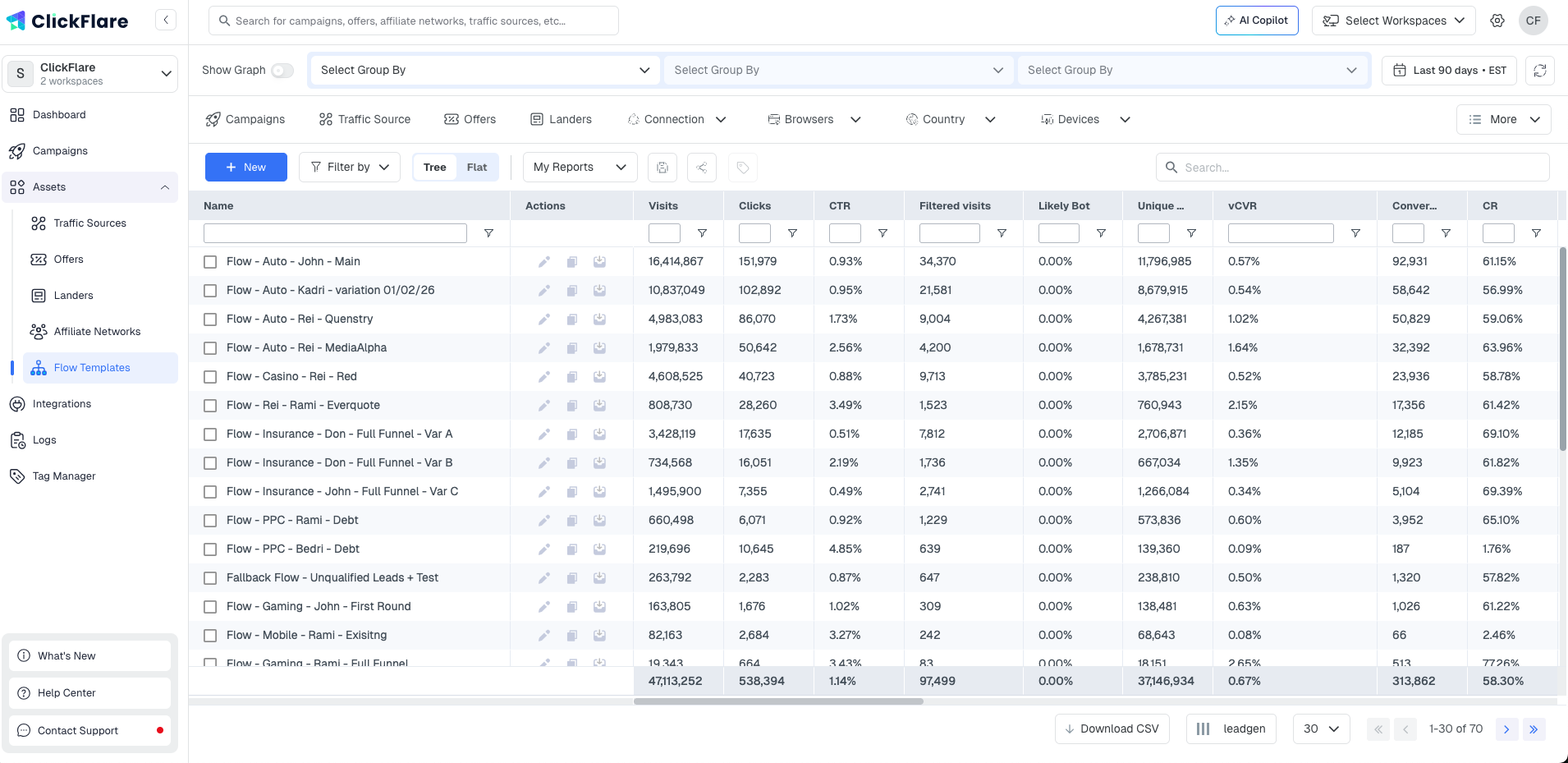
Flow Templates
A Flow Template is a standalone flow saved in the Flows section of ClickFlare, separate from any individual campaign. It has its own Name, Workspace, Tags, and Notes fields, and contains the same path structure as any inline campaign flow.
Once saved, a Flow Template can be attached to any number of campaigns. This makes it the right choice for routing logic you want to maintain centrally, such as a standard offer rotation used across all your Meta campaigns.
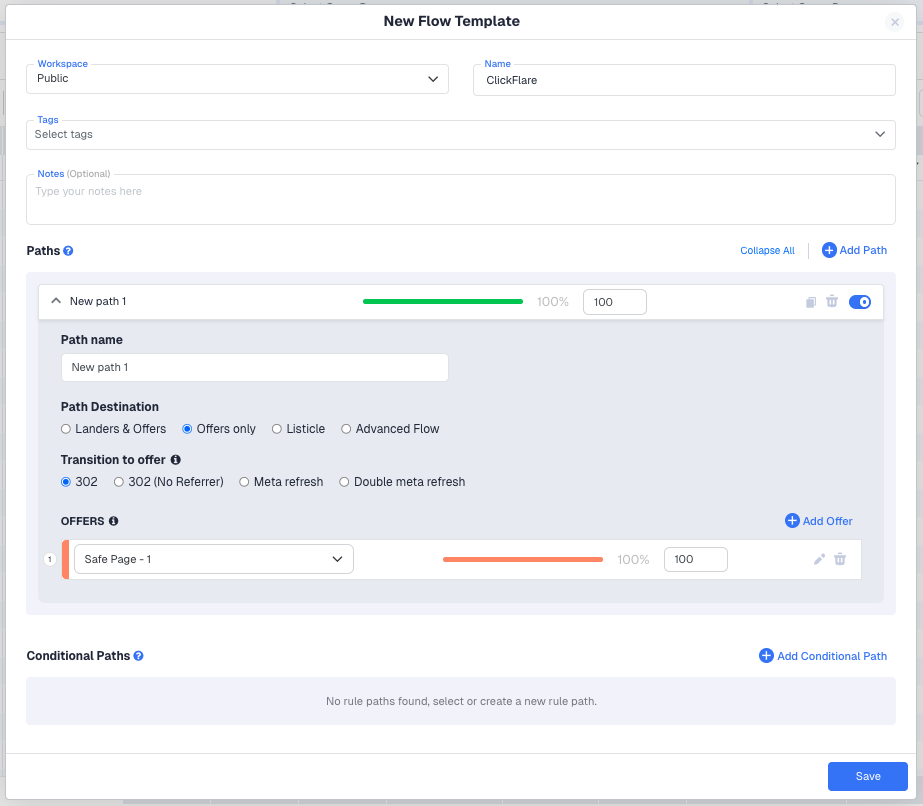
Paths: Default and Conditional
A flow contains two types of paths: a default path and, optionally, one or more conditional paths. Every flow must have at least one default path.
Default Path
The fallback path. Every visitor who does not match any conditional path is sent here. You must always have a default path , it is the safety net that ensures no visit goes unrouted. You can add multiple default paths and assign weights to distribute traffic between them.
Conditional Paths
Rule-based paths that only activate when a visitor matches a defined condition. Conditions can be based on country, device type, browser, language, traffic source parameters, or many other visit attributes. ClickFlare evaluates conditional paths in order from top to bottom and sends the visitor down the first path whose condition matches. If no condition matches, the visitor falls through to the default path.
Each conditional path contains its own path structure, path destination type, transition mode, landers and offers , completely independent of the default path. This lets you send US mobile visitors to one funnel and everyone else to a different one, all within a single campaign.
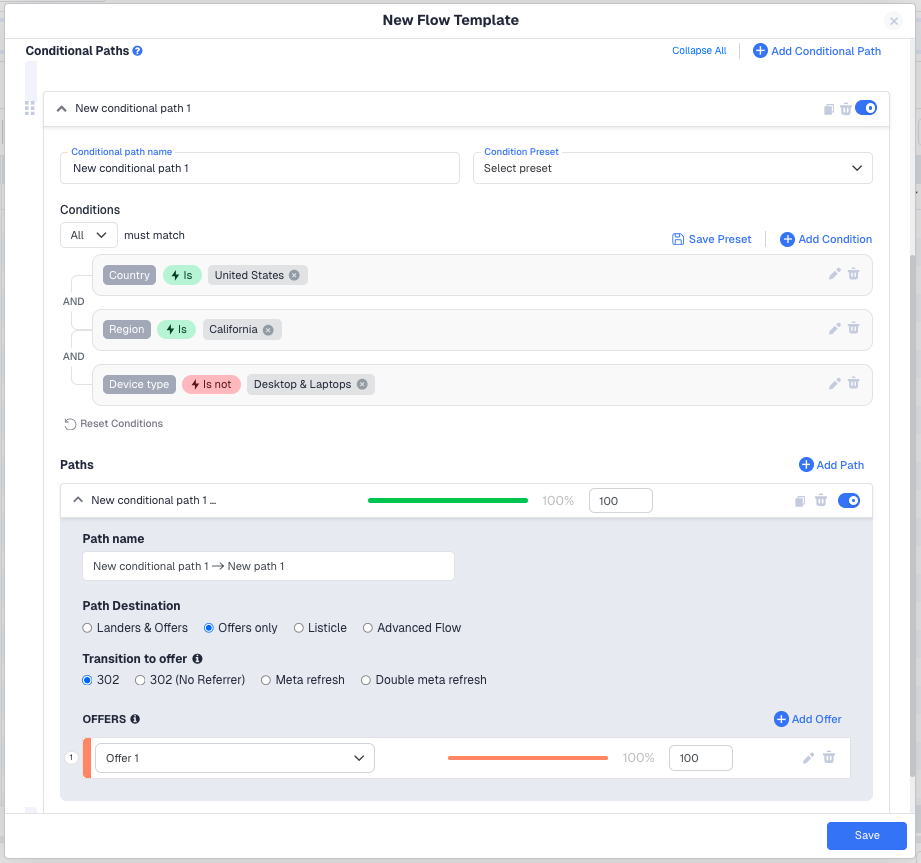
ClickFlare evaluates conditional paths from top to bottom and stops at the first match. If two conditions could both apply to the same visitor, place the more specific one higher in the list.
Path Destination Types
Each path, whether default or conditional, has a Path Destination setting that defines the structure of the funnel visitors go through. There are five options.
- Landers and Offers: visitors go to a landing page first, then click through to an offer. Enables CTR tracking between the lander and the offer and supports lander-level A/B testing and rotation.
- Offers only: visitors go directly to an offer with no lander. The simplest setup, recommended when testing tracking for the first time or running direct-to-offer campaigns.
- Listicle: a three-step funnel , Prelander, Lander, Offer. The prelander contains links to multiple landers, each linking to its own offer. Note that Listicle is planned for deprecation and its functionality will be fully covered by Advanced Flow going forward.
- Advanced Flow: a multi-step builder allowing up to four sequential steps (e.g. Lander, Lander, Lander, Offer). Traffic weights can be applied at each node so ClickFlare distributes visitors across options automatically at every level of the funnel.
Transition Modes
Each path has a Transition to offer setting that controls how the redirect from ClickFlare to the destination is technically executed. There are five options.
302
The standard HTTP redirect. Fastest option and passes full referrer data through to the destination. Use 302 by default unless you have a specific reason to modify or strip the referrer.
302 (No Referrer)
A 302 redirect that strips the referrer header before passing the visitor to the destination. The destination receives the visit but does not see the originating domain in the referrer. Use this when you want the speed of a 302 redirect but need to prevent the traffic source domain from appearing as the referrer at the offer or affiliate network.
Meta Refresh
Adds an intermediate page between ClickFlare and the destination. This intermediate page strips the original referrer, so the traffic source domain does not appear as the referrer at the offer. Use when your affiliate network requires that the original traffic source is not visible.
Double Meta Refresh
Two meta refreshes in sequence. The first refresh page becomes the visible referrer at the destination instead of the original traffic source. The most reliable method for hiding the original referrer, but adds a small amount of latency. Use when Meta Refresh alone is not sufficient.
Direct
Instead of routing the visitor through a ClickFlare Click URL, the CTA on the lander links directly to the final offer URL. This means a visitor hovering over the CTA button will see the actual destination URL rather than a ClickFlare tracking URL. ClickFlare's tracking script must be installed on the lander page for this transition mode to work. Use this when your ad platform or network does not permit redirect URLs in the funnel.
Some networks require the traffic source domain as the referrer. Others actively want it hidden. Confirm before choosing anything other than 302 or 302 (No Referrer).
Traffic Weights and Rotation
Every lander and offer inside a path has a weight value. ClickFlare uses these weights to distribute traffic proportionally between the elements. The weights do not need to add up to any specific number , ClickFlare calculates the percentage share automatically based on the relative values. If you have three offers with weights 100, 100, and 50, they receive roughly 40%, 40%, and 20% of traffic respectively.
Weights apply at every level: between default paths, between landers within a path, between offers within a path, and between options at each step in an Advanced Flow. This gives you full control over traffic distribution at every point in the funnel.
ClickFlare can suggest optimal weights automatically based on EPV (Earnings Per Visit) data from the last 7 days. Enable the AI Weight Optimisation toggle inside the flow to activate this feature.
FREQUENTLY ASKED QUESTIONS
Got questions? Find the answers below:
Q1: What is the difference between a Flow and a Path?
A1: A Flow is the container. It holds one or more paths. A Path is the actual routing rule inside the flow , it defines where visitors go and under what conditions. Every flow needs at least one default path.
Q2: What is the difference between a Flow Template and an inline campaign flow?
A2: A Flow Template is saved separately in the Flows section and can be attached to multiple campaigns. An inline flow exists only inside the campaign where it was created. If you edit an inline flow, only that campaign is affected. If you edit a Flow Template, every campaign using it is updated simultaneously.
Q3: Can I attach the same Flow Template to multiple campaigns?
A3: Yes. That is the primary reason to use a Flow Template. Attach it to as many campaigns as you want. Any change to the template applies to all of them immediately.
Q4: What happens if no conditional path matches a visitor?
A4: The visitor is sent to the default path. This is why every flow must have a default path , it is the guaranteed fallback for all visitors who do not meet any conditional rule.
Q5: Can I use different transition modes for different paths in the same flow?
A5: Yes. Each path has its own Transition to offer setting, set independently. You can have one path using 302 and another using Double Meta Refresh within the same flow.
Q6: What is the difference between 302 and 302 (No Referrer)?
A6: Both are standard HTTP redirects with the same speed. The difference is referrer handling: 302 passes the full referrer header to the destination, while 302 (No Referrer) strips it so the originating domain is not visible at the destination. Use 302 (No Referrer) when you want a fast redirect but need to prevent referrer leakage.
