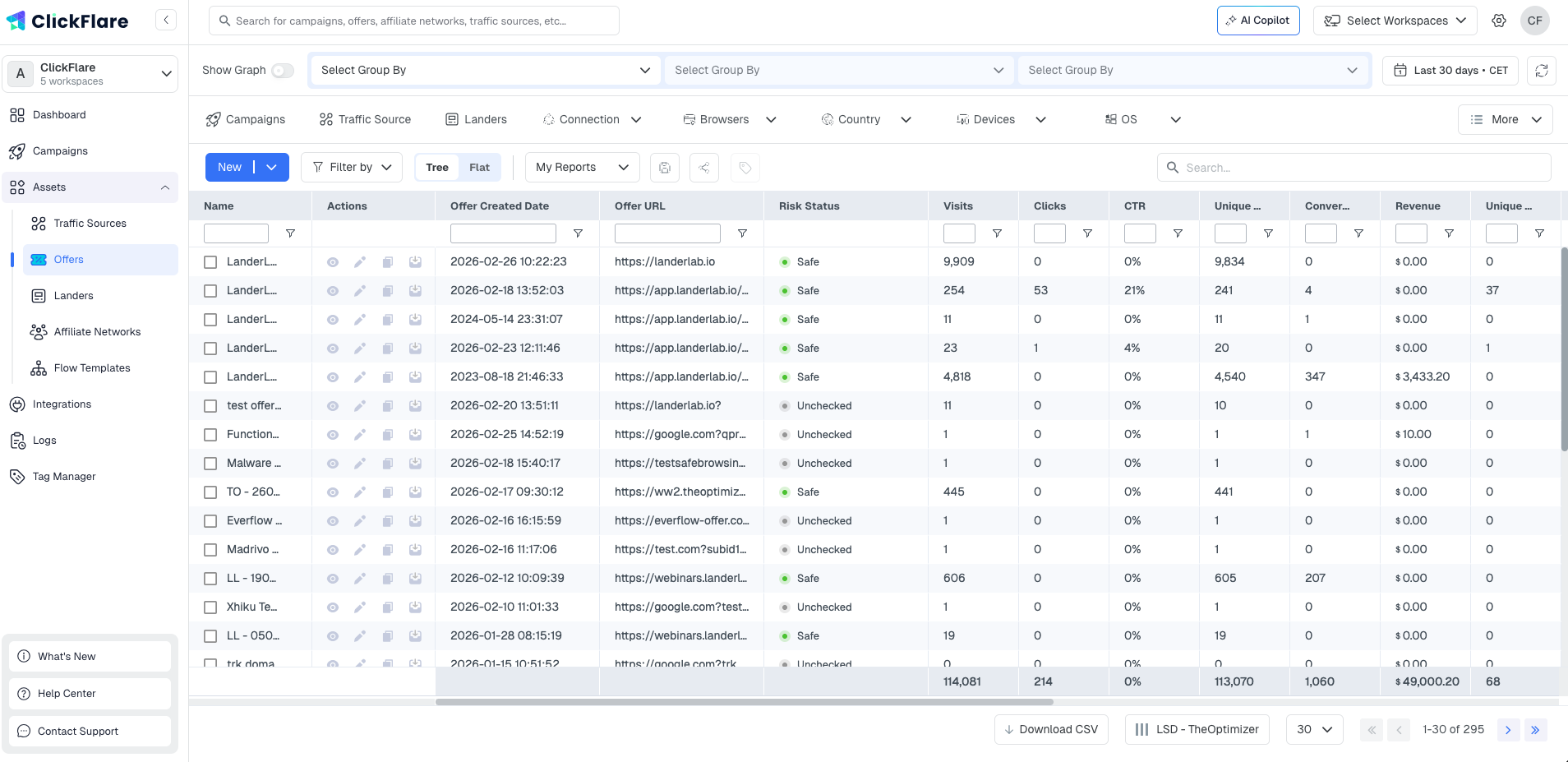
What an Offer Does
When a visitor clicks a CTA on your lander, ClickFlare sends them to the offer URL. If the offer is set up correctly, ClickFlare also receives a signal when that visitor converts , either via a postback from the affiliate network or via a tracking pixel or script on the offer's thank-you page. This signal is matched back to the original visit, and the conversion is recorded in your reports alongside the payout.
Without an offer configured, ClickFlare has nowhere to send visitors after the lander and no way to record conversion revenue.
What an Offer Contains
The offer form is split into two logical sections: the offer setup at the top, and the conversion tracking and payout configuration below.
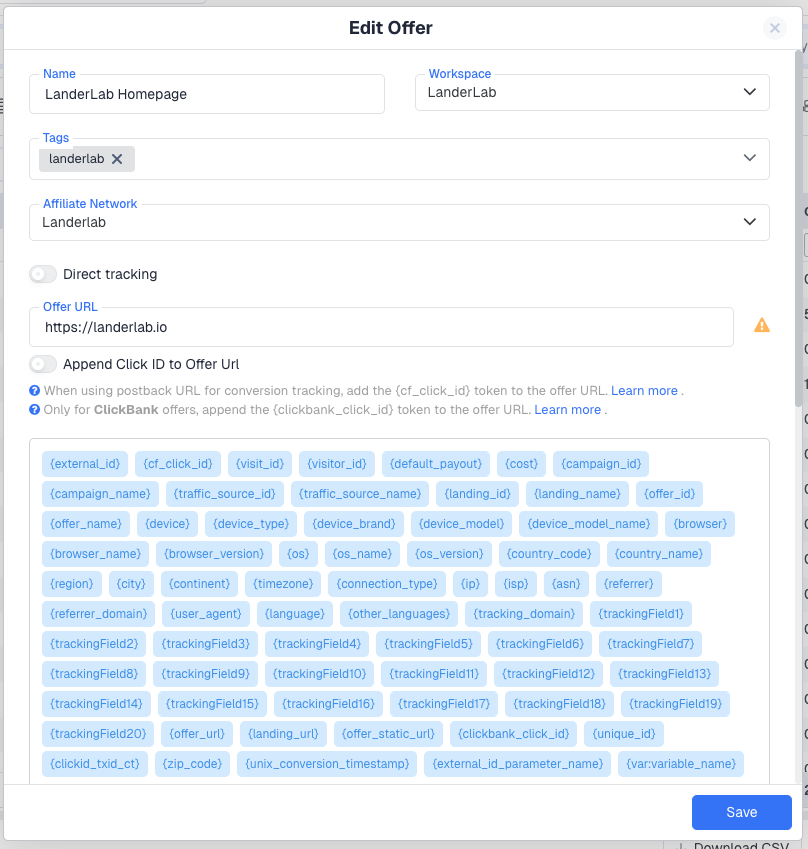
Name, Workspace and Tags
Name is the internal label used to identify the offer in dropdowns and reports. Workspace controls which team members or clients can access this offer. Tags are optional labels for searching and filtering the Offers list. None of these fields are visible to visitors.
Affiliate Network
Linking an affiliate network to the offer does two things. First, it makes the Append Click ID to Offer URL toggle available , when enabled, ClickFlare automatically appends the correct click ID parameter to your offer URL using the parameter name configured on the affiliate network template, so you do not need to add it manually. Second, it associates the conversion data with that network in your reports.
Selecting an affiliate network is optional. If your offer does not come from an affiliate network, leave this blank and append the click ID token manually to your Offer URL.
Direct Tracking
Enables Direct tracking for this offer. For this to work, Direct tracking must also be enabled at the campaign level. When the toggle is on, ClickFlare provides a Direct Tracking Script to inject into the first step of your funnel , this is what captures the visit server-side since no redirect through ClickFlare occurs.
Where the script goes depends on your funnel structure:
- Lander then Offer funnel: the Direct Tracking Script goes on the lander (the first step). The lander to offer transition uses a standard Click URL redirect, so no script is needed on the offer itself.
- Direct to Offer funnel (no lander): the Direct Tracking Script goes on the offer page itself, since the offer is the first step.
Direct tracking does not change how conversions are tracked , postback, pixel, and script conversion methods all work the same as in Redirect campaigns. However, when traffic goes directly from the ad to the offer with no lander in between, it is not possible to append the ClickFlare click ID to the Offer URL via redirect. In this case, to track conversions you can either retrieve the click ID from the cookie or the window.clickflare.tracking_params.click_id object on the page and pass it to your affiliate network, or use the ClickFlare Conversion Tracking Script on your thank-you page.
Offer URL and Available Tokens
The URL of the destination page you are promoting. This is where ClickFlare sends visitors after they click through from a lander or directly from the campaign.
Below the URL field, ClickFlare shows the full list of available tokens you can append to the Offer URL as dynamic parameters. These are filled in at click time with real visit data , things like {cf_click_id}, {campaign_id}, {device}, {country_code}, and many more. Appending the right tokens to your offer URL is how you pass tracking data to your affiliate network so it can attribute conversions back to ClickFlare.
Always append
{cf_click_id} to your Offer URL (or use the Append Click ID toggle if an affiliate network is selected). This is the identifier your affiliate network returns in the postback, allowing ClickFlare to match the conversion to the original visit. Note that in a Direct to Offer setup with no lander, it is not possible to append the click ID via URL at click time , see the Direct Tracking section above for how to handle conversion tracking in that case.Offer Static URL
If you need to send an offer URL to an external third-party system that is different from your actual Offer URL, enter the alternative URL here. You can then reference its value anywhere in ClickFlare using the {offer_static_url} token. A common use case is the Facebook Conversion API, where you map this value to the Event Source URL field in your CAPI integration settings.
Conversion Tracking
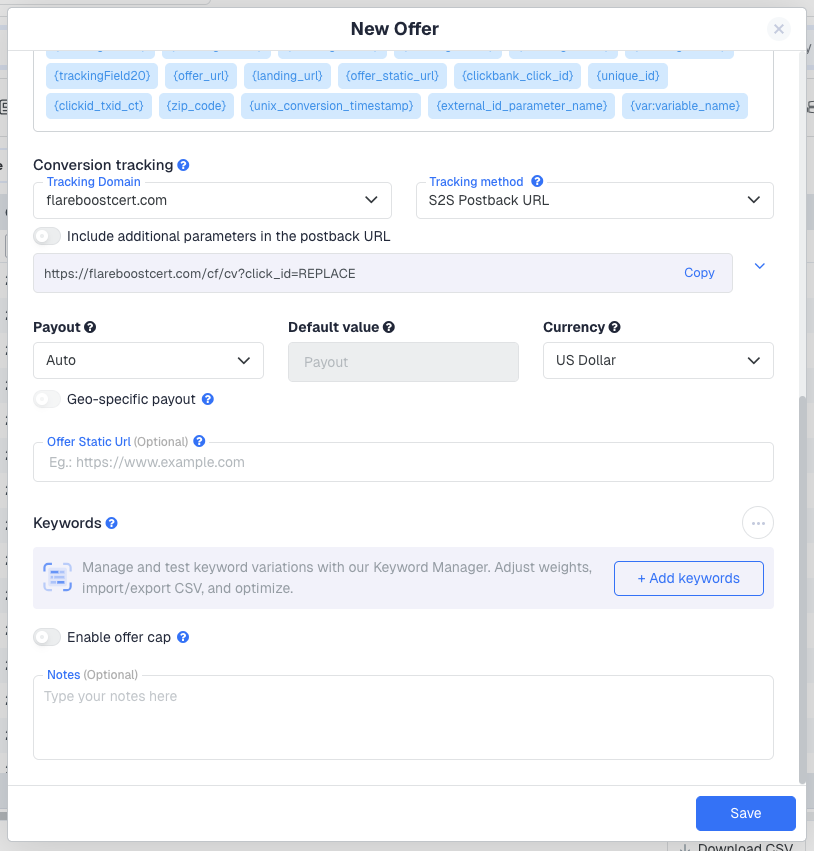
The Conversion tracking section defines how ClickFlare receives the signal that a conversion has occurred on this offer. There are four methods available from the Tracking method dropdown.
S2S Postback URL (recommended)
Server-to-server postback. When a conversion fires, your affiliate network calls ClickFlare's Postback URL and passes back the click ID. ClickFlare matches it to the original visit and records the conversion. This method is the most reliable because it happens entirely server-side and is not affected by ad blockers or browser privacy settings.
Copy the Postback URL from this field and paste it into your affiliate network's conversion postback settings. The Include additional parameters toggle expands the URL to include optional payout and transaction ID fields.
Tracking Pixel
An image pixel placed on the offer's thank-you page. When the page loads, the pixel fires and sends the conversion signal to ClickFlare. This method works without a postback but is more susceptible to browser restrictions and ad blockers than S2S.
Tracking Pixel URL
A URL version of the tracking pixel, for networks or platforms that accept a conversion URL rather than an image tag.
Tracking Script
A JavaScript snippet placed on the offer's thank-you page. Similar to the pixel but runs as a script, which gives it slightly more flexibility for passing additional parameters. Used when a postback is not available and a pixel is insufficient.
Use S2S Postback URL wherever possible. It is the most reliable and least affected by browser-side restrictions. Only use pixel or script methods if your affiliate network does not support postbacks.
Payout
The Payout section tells ClickFlare what revenue value to record when a conversion fires on this offer. Getting this right is what makes your Revenue, Profit, and ROI figures meaningful.
Auto
ClickFlare reads the payout value dynamically from the postback or pixel URL fired by the affiliate network. The network passes the actual payout for each conversion as a parameter, and ClickFlare records it against that conversion. Use Auto when your affiliate network includes the payout in its postback and the amount varies per conversion.
Manual
You enter a fixed payout value in the Default value field. This value is used as a fallback, but if the affiliate network sends a payout value in the postback it will override the manual amount. Use Manual only when your affiliate network does not have the ability to pass the payout dynamically through the postback, or as a fallback.
Currency
The currency in which this offer pays out. If it differs from your ClickFlare account's default reporting currency, ClickFlare converts it automatically. Make sure the currency here matches what your affiliate network actually pays you in, otherwise your Revenue figures will be incorrect.
Geo-specific Payout
An optional override that lets you define a different payout value for conversions from specific countries. For example, if your offer pays $5.00 for US conversions and $2.00 for all others, you can configure this here. Geo-specific payout requires Manual payout mode.
Additional Fields
Keywords
Opens the Keyword Manager, which lets you define keyword variations with weights and values to append dynamically to the Offer URL. This is used for search arbitrage setups where keyword data needs to be passed through to the offer. If you are not running search traffic, this field is not relevant to your setup.
Enable Offer Cap
A toggle that activates the Offer Cap feature, which lets you limit the number of conversions ClickFlare will send to this offer. Once the cap is reached, ClickFlare stops routing traffic to the offer and can redirect it elsewhere. Useful for protecting offers with daily or total conversion limits set by the advertiser.
Notes
A free-text field for internal reference. Useful for recording which affiliate network the offer belongs to, payout terms, test notes, or any setup details your team needs.
Offers as a Reusable Asset
Like landers and traffic sources, an offer is created once and can be used across any number of campaign paths. You do not need to create a separate offer record for each campaign. The Offers list view shows aggregated stats across all campaigns using that offer, giving you a cross-campaign view of how each destination is performing.
FREQUENTLY ASKED QUESTIONS
Got questions? Find the answers below:
Q1: Do I need to add an affiliate network to create an offer?
A1: No. The Affiliate Network field is optional. If your offer is not from an affiliate network , for example if you are promoting your own product , leave it blank. You will need to append the click ID token to your Offer URL manually in that case, since the Append Click ID toggle is only available when an affiliate network is selected.
Q2: What is the difference between Auto and Manual payout?
A2: Auto reads the payout dynamically from the value your affiliate network passes in the postback. Manual lets you enter a fixed fallback value, but if the network does send a payout in the postback it will still override it. Use Auto when your network passes the payout dynamically. Use Manual only when your network does not support sending payout values in the postback at all, or as a fallback.
Q3: My conversions are being recorded but revenue shows as $0.00. What is wrong?
A3: This usually means the payout is set to Auto but the affiliate network is not passing a payout value in the postback, or the payout parameter token is not correctly configured in the Postback URL. Check that the postback URL includes the payout token from your network and that the network is actually sending a value. Alternatively, switch to Manual payout and enter the fixed amount.
Q4: Can I use the same offer in multiple campaigns?
A4: Yes. An offer is a reusable asset. Add it once and assign it to as many campaign paths as needed. Each campaign tracks conversions independently, but the Offers list view shows total stats across all campaigns using that offer.
Q5: When should I use Geo-specific payout?
A5: When the same offer pays different amounts depending on the visitor's country. For example, a lead generation offer might pay $8 for US leads and $2 for UK leads. Without Geo-specific payout configured, ClickFlare would record the same fixed amount for every conversion regardless of country, making your Revenue figures inaccurate by geo.
