What a Lander Does
ClickFlare does not host or modify your landing pages. Your pages live on your own server or hosting platform. What ClickFlare stores is a reference to that page along with the configuration it needs to track visitor behaviour on it.
When a lander is added to a campaign path, ClickFlare records two separate events:
- A Visit when a visitor lands on the page.
- A Click when that visitor taps a CTA button and is sent onward to the offer.
The ratio between these two numbers is your CTR (Click-Through Rate) : one of the most important metrics for evaluating and optimising landing page performance. Without a lander configured in ClickFlare, you get a visit count but no click count, and CTR cannot be calculated.
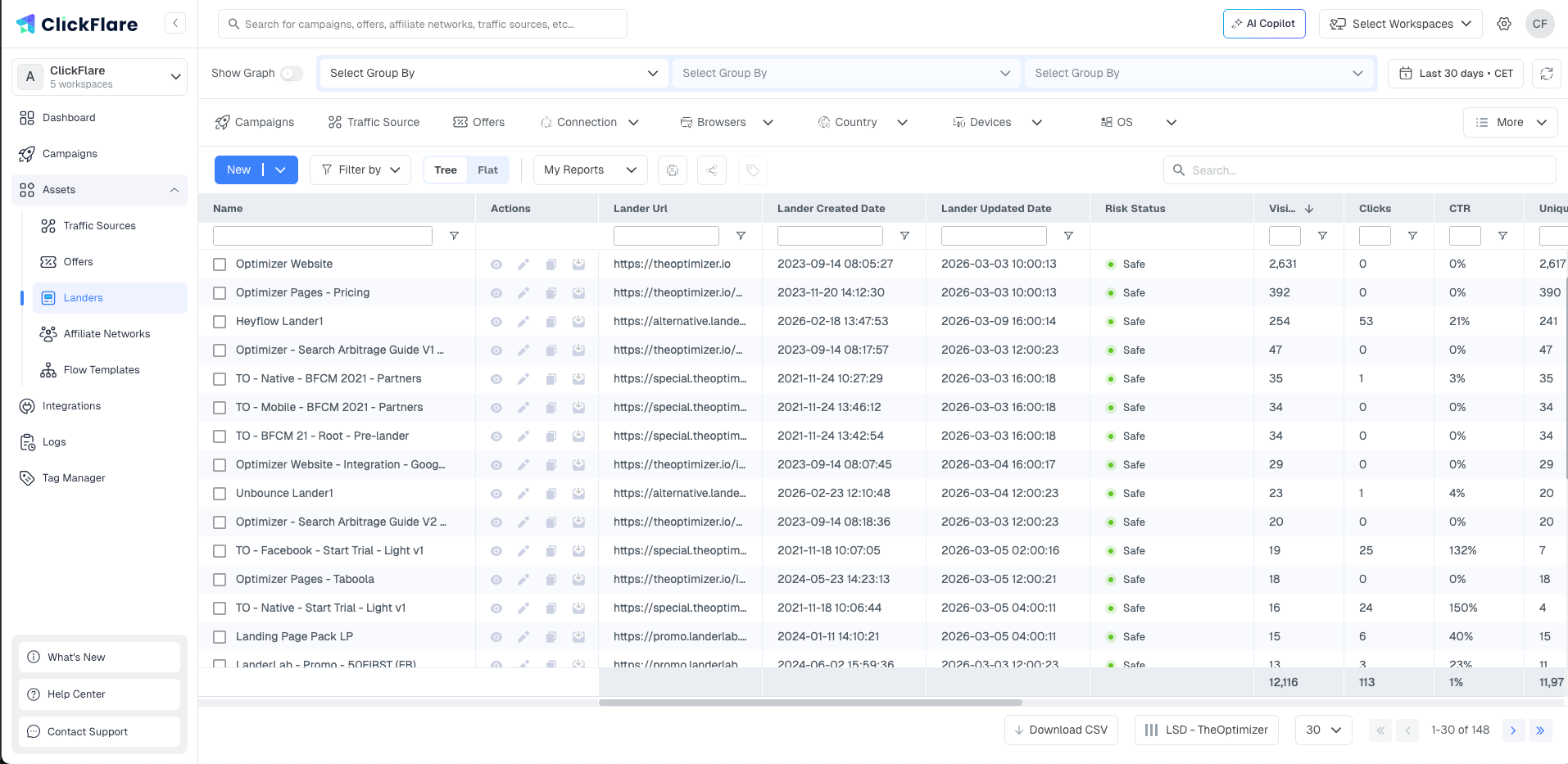
What a Lander Contains
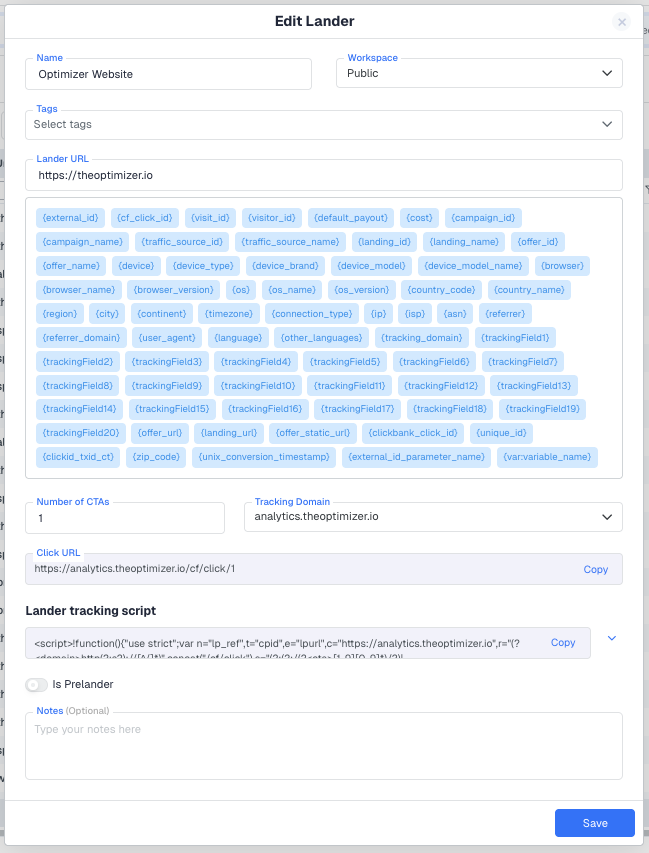
The lander form has the following fields, in the order they appear in the editor.
Name and Workspace
Name is an internal label used to identify the lander in dropdowns and reports throughout ClickFlare. It does not appear to visitors. Workspace controls which team members or clients can access this lander. If no workspace is selected, the lander defaults to Public and is visible to everyone in the account.
Tags
Custom labels you can attach to a lander for easier searching and filtering in the Landers list. Tags are purely organisational and have no effect on tracking or routing.
Lander URL
The publicly accessible URL of your landing page. This must be reachable by any visitor's browser. ClickFlare uses this URL to redirect visitors to the page in Redirect campaigns, and as the base reference when the Lander Tracking Script fires in Direct campaigns.
Available Tokens
Below the Lander URL field, ClickFlare displays a full list of tokens you can append to the Lander URL as dynamic parameters. These tokens are filled in at click time with real visit data , things like {cf_click_id}, {cost}, {campaign_id}, {device}, {country_code}, and many more. You can append any of these to your Lander URL to pass visit-level data through to the landing page, where your page script or personalisation logic can read and use it.
Appending {country_code} to your Lander URL lets your landing page detect the visitor's country and display localised content or redirect to a country-specific version automatically.
Number of CTAs
The number of call-to-action buttons or links on your landing page that lead to an offer. This is one of the most important fields on the lander form and directly affects how tracking works.
ClickFlare generates one unique Click URL per CTA. You paste each Click URL into the href attribute of the corresponding CTA button in your page's HTML. When a visitor clicks that button, ClickFlare records the click and routes them to the correct offer.
There are three common configurations:
- 1 CTA: the page has a single button. All visitors who click are sent to one offer (or to multiple offers in rotation, based on the weights set in the campaign path).
- Multiple CTAs, same destination: the page has more than one button but all buttons lead to the same offer. Set the CTA count to 1 and use the same Click URL in every button. You do not need a separate CTA entry just because the page has multiple buttons.
- Multiple CTAs, different destinations: each button leads to a different offer. ClickFlare generates a separate Click URL per button. Visitors self-select their path by choosing which CTA to click, and 100% of that click's traffic goes to the corresponding offer.
If the CTA count does not match the actual number of clickable elements on your page, some clicks will not be tracked or will be routed incorrectly. Count every distinct CTA button or link that leads to an offer and enter that number here.
Click URL
A read-only field that displays the Click URL generated by ClickFlare for this lander. This is the URL you paste into the href attribute of your CTA button. For landers with multiple CTAs, each button gets a numbered URL: /cf/click/1, /cf/click/2, and so on. Copy the correct URL for each button directly from this field.
Lander Tracking Script
A JavaScript snippet you paste into the <body> section of your landing page's HTML for Direct (non-redirect) campaigns. The script fires when the page loads and sends visit data to ClickFlare, replacing the server-side tracking that a redirect would normally handle.
The script itself is universal, it is the same across all landers. The only thing that varies is the tracking domain it references. The domain of the script needs to match with the domain used for the Click URL. If the script domain and the Click URL domain do not match, visit tracking will not work correctly.
You do not need this script for Redirect campaigns.
Is Pre-lander
A toggle that marks this lander as the first page in a Listicle funnel (Prelander > Lander > Offer). When enabled, ClickFlare knows this page sits before another lander in the funnel and routes the visitor to the next lander when they click a CTA. The Click URL is the same as any other lander (/cf/click or /cf/click/1 for multi-CTA pages) , the routing is determined by the funnel structure, not by a different URL format.
This toggle is only needed when using the Listicle path destination type. If you are building multi-step funnels using Advanced Flow, leave this toggle off , Advanced Flow handles any funnel depth and sequence without requiring the pre-lander designation.
Notes
A free-text field for internal reference. Useful for recording the angle the page uses, which offer it was built for, test hypotheses, or setup instructions for your team.
Landers and CTR Tracking
CTR is only recorded when the click URLs generated by ClickFlare are correctly embedded in your page. If you link your CTA button directly to an offer URL without going through ClickFlare's click URL, the visit will be recorded but the click will not, and CTR will show as 0%.
The click URL for a lander looks like this:
https://your-tracking-domain.com/cf/clickFor landers with multiple CTAs, each button gets a numbered URL:
https://your-tracking-domain.com/cf/click/1
https://your-tracking-domain.com/cf/click/2
You copy the Click URL directly from the Click URL field in the lander form and paste it into your page's HTML as the href value of each CTA anchor tag.
After setting up the lander, open the campaign URL in a browser, land on the page, and click the CTA. Check the Visits and Clicks columns in your ClickFlare reports to confirm both events are recorded. If Clicks stays at 0, the click URL is not correctly placed in the page HTML.
Landers as a Reusable Asset
A lander is created once and can be used in any number of campaign paths. You do not need to create a separate lander record for each campaign. If the same landing page is used in five campaigns, you add it to ClickFlare once and select it from the dropdown in each campaign's Destination tab.
Stats in the Landers list view aggregate all visits and clicks across every campaign that uses that lander, giving you a cross-campaign view of how the page performs overall.
FREQUENTLY ASKED QUESTIONS
Got questions? Find the answers below:
Q1: Do I need a lander to run a campaign?
A1: No. Campaigns can send visitors directly to an offer with no lander in between. A lander is only required if you want a pre-sell page in your funnel and want to measure CTR between the page and the offer.
Q2: My landing page has a button at the top and one at the bottom, both going to the same offer. What CTA count should I set?
A2: Set the CTA count to 1. The count reflects the number of distinct destinations on the page, not the number of buttons. Since both buttons lead to the same offer, use the same Click URL in both. ClickFlare will record a click each time either button is clicked and route all traffic to that one offer.
Q3: What is the difference between the Click URL and the Lander Tracking Script?
A3: The Click URL goes in your CTA button's href and records when a visitor clicks through to the offer. The Lander Tracking Script goes in the page body and records when a visitor first arrives on the lander. You need both when running Direct campaigns: the script captures the visit, and the Click URL captures the click. Note that the script is universal across all landers, only the tracking domain changes. Make sure the domain in the script matches the domain used to generate the Click URL.
Q4: Can I use the same lander in multiple campaigns?
A4: Yes. A lander is a reusable asset. Add it to ClickFlare once and select it across as many campaigns as needed. Each campaign tracks visits and clicks independently, but the Landers list view shows aggregated stats across all campaigns.
Q5: When should I mark a lander as a pre-lander?
A5: Only when you are using the Listicle path destination type. In a Listicle funnel (Prelander > Lander > Offer), the first page must be marked as a pre-lander so ClickFlare knows to route visitors to the next lander in the sequence when they click a CTA. The Click URL on a pre-lander is the same format as any other lander (/cf/click or /cf/click/1) , ClickFlare handles the routing to the next lander based on the funnel structure itself. If you are using the Advanced Flow path type, you do not need to enable this toggle , Advanced Flow lets you build multi-step funnels of any depth without it.
Note that the Listicle type is planned for deprecation and its functionality will be fully covered by Advanced Flow going forward.
