This guide takes the shortest path to a working campaign. It uses Redirect Tracking, an Offers Only path (no landing page), and a 302 transition mode — the defaults that work for the vast majority of setups. You can always change these later.
Before You Start
You'll need the following ready:
- A ClickFlare account with your timezone and currency configured (Account Setup Checklist)
- A tracking domain set as your Main Domain (Domains guide)
- An active ad account on any traffic source (Meta, TikTok, Google Ads, etc.)
- An offer URL — the page where conversions happen (e.g. your affiliate network offer link)
What You're Building
The simplest ClickFlare funnel routes ad traffic directly to an offer — no landing page in between. ClickFlare sits in the middle, recording the visit and attributing any conversion back to the original click.
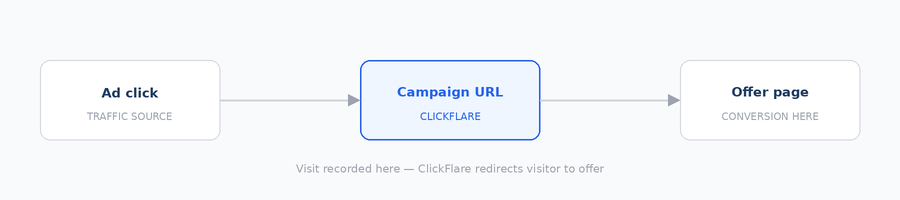
Once this is working, you can extend the funnel by adding a landing page, conditional paths, or A/B testing — but those come later
Step-by-Step Setup
1. Add a Traffic Source
A Traffic Source in ClickFlare represents the ad platform you're buying traffic from. It tells ClickFlare which parameters to expect in your campaign URLs — things like ad ID, campaign ID, and cost — so they get recorded against each visit.
Go to Traffic Sources in the left sidebar and click + New. ClickFlare has pre-built templates for all major platforms — Meta, TikTok, Google Ads, Taboola, and more. Select your platform's template and ClickFlare will pre-fill the parameter mapping for you.
The only things you need to set yourself:
- Name — something recognisable, e.g. Meta Ads
- Cost Currency — match this to your ad account's billing currency
- Conversion Postback URL — if you want to send conversions back to your traffic source, paste the postback URL provided by your network. You can skip this for now and add it later.
- Click Save.
If your traffic source has no template, select + New Traffic Source and enter the parameters manually. See How to Add a Custom Traffic Source for the full guide.
2. Add an Affiliate Network (optional but recommended)
An Affiliate Network in ClickFlare is a label for your revenue source — it groups your offers and tells ClickFlare how to receive conversion postbacks from that network. If you're promoting a direct offer without an affiliate network, you can skip this step.
Go to Affiliate Networks in the left sidebar and click + New. Give it a name (e.g. ClickBank), then configure the postback token mapping — this is how ClickFlare knows which click generated a conversion when the network fires a postback.
The key field is the Click ID parameter name: enter whatever parameter name your network uses to pass ClickFlare's Click ID back (commonly click_id or cf_click_id — check your network's postback documentation).
Click Save.
3. Add an Offer
An Offer is the destination page where conversions happen — your affiliate offer, product page, or lead form. ClickFlare needs it registered so it can route traffic there and attribute conversions back to individual visits.
Go to Offers in the left sidebar and click + New. Fill in:
- Name — e.g. Weight Loss Offer - US
- Affiliate Network — select the one you created in Step 2 (or leave blank if skipped)
- Offer URL — paste your offer link. Append ClickFlare's Click ID token so the network can pass conversions back: e.g. https://yournetwork.com/offer?clickid={cf_click_id}
- Payout — enter the default payout amount, if you can not pass it dynamically through a postback, so ClickFlare can calculate revenue and ROI
- Click Save.
This is ClickFlare's Click ID token. When ClickFlare redirects a visitor to your offer URL, it replaces {cf_click_id} with the actual Click ID for that visit. Your affiliate network stores it and includes it in the conversion postback — allowing ClickFlare to match the conversion to the right visit.
4. Create the Campaign
The campaign is where everything connects. Go to Campaigns in the left sidebar and click + New.
General tab
Fill in the basic campaign details:
- Campaign Name — something descriptive, e.g. Meta - US - Weight Loss - Desktop
- Traffic Source — select the one you created in Step 1
- Country and Device Type — optional, but useful for organisation when running multiple campaigns
- Cost Model — choose how you're paying for traffic (CPC, CPM, CPA, or RevShare). For most ad platforms, CPC is the right choice
- Tracking Type — leave this as Redirect for now
Destination tab
This is where you define the funnel. For this quickstart, select New Flow and:
- Set Transition Mode to 302 — the fastest and most compatible redirect method
- Under the default path, set Path Destination to Offers Only
- Add your offer from Step 3 under the Offers section of the path
Keeping the funnel to Offers Only means fewer things can go wrong while you're verifying tracking. Once you've confirmed visits and conversions are recording correctly, you can add a landing page to the path.
Tracking tab
Click the Tracking tab after saving your destination settings. Here you'll see:
- Domain — your Main Domain should already be selected. Change it here if needed
- Campaign URL — this is the tracking link you'll paste into your ad as the destination URL. Copy it now
- Postback URL — this is what you give to your affiliate network so it can fire conversions back to ClickFlare. Copy it and paste it into your network's postback configuration
- Click Save.
5. Paste the Campaign URL into Your Ad
Go to your ad platform and paste the Campaign URL as the destination URL (sometimes labelled "Website URL", "Final URL", or "Landing Page URL" depending on the platform). This is the URL visitors will hit when they click your ad — ClickFlare intercepts it, records the visit, and redirects them to your offer.
Your traffic source template already added the parameter placeholders to the Campaign URL automatically (e.g. &cost={cost}&ad_id={ad.id}). These are replaced by your ad platform with real values at click time — you don't need to edit them manually.
6. Verify Tracking is Working
Before going live with real ad spend, click your own Campaign URL in a browser. Then go to Campaigns in ClickFlare and check that a Visit has been recorded against your campaign. If the visit appears, your tracking is working correctly.
To test the full conversion flow, complete a test conversion on your offer (most affiliate networks have a test postback tool). Then check the Logs → Event Logs tab to confirm the postback was received and matched to a visit.
Check that your Campaign URL is being used as-is — some ad platforms encode or modify destination URLs, which can break the tracking. Also confirm your custom domain DNS is fully propagated.
What's Next
You now have a working tracked campaign. Here's what to set up next depending on your goals:
- Add a landing page — go back to your campaign's Destination tab, change the path destination to Landers & Offers, and add a lander element. This unlocks CTR tracking and lets you A/B test landing pages.
- Set up a Conversion API integration — pass conversion data back to Meta, TikTok, or Google Ads so their algorithms can optimise toward conversions rather than clicks.
- Add conditional paths — route traffic differently based on device type, geo, or custom variables.
- Enable cost tracking — connect your ad platform under Integrations → Cost Tracking to auto-import spend and see accurate ROI in your reports.
FREQUENTLY ASKED QUESTIONS
Got questions? Find the answers below:
Q1: Do I need to add a landing page to use ClickFlare?
A1: No. The Offers Only path sends visitors directly from your ad to your offer — no landing page needed. Landing pages are optional and add CTR tracking and split-testing capabilities, but they're not required for basic conversion tracking to work.
Q2: What's the difference between the Campaign URL and the Postback URL?
A2: The Campaign URL goes into your ad as the destination — it's what visitors click. The Postback URL goes into your affiliate network — it's what the network calls when a conversion happens. Both are found in the Tracking tab of your campaign.
Q3: I set up everything but no visits are recording. What should I check?
A3: First, click the Campaign URL directly in a browser and check if a visit appears in ClickFlare. If it does, the issue is with how your ad platform is passing the URL. If it doesn't, check that your custom domain is correctly configured and that DNS has propagated. You can also check Logs → Event Log for any errors.
Q4: Can I use the same traffic source for multiple campaigns?
A4: Yes — a traffic source is a reusable configuration. Create it once and assign it to as many campaigns as needed. Each campaign gets its own unique Campaign URL, so ClickFlare can attribute visits to the correct campaign even if they share the same traffic source.
Q5: Does ClickFlare work with direct-link offers (no affiliate network)?
A5: Yes. You can create an offer without assigning it to an affiliate network. In that case, leave the Affiliate Network field blank when creating the offer. Conversion tracking will still work as long as you configure a postback URL or pixel on your offer page.
